Hardware Accelerated GPU Scheduling (HAGS) & GPU Bottleneck Calculator: Does It Really Help?
Wondering whether Hardware Accelerated GPU Scheduling (HAGS) will fix your lag? Before changing any setting, use a GPU bottleneck calculator to check whether your CPU or GPU is actually holding your PC back.
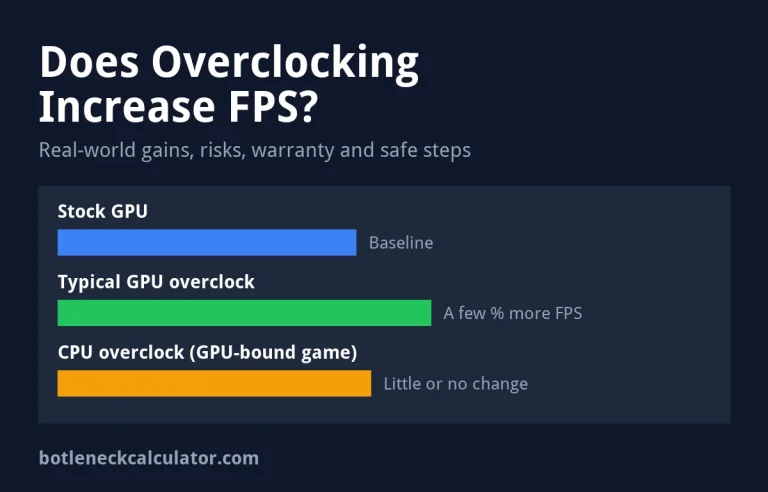
Many PC and laptop users say HAGS makes no difference in games. After reading many Reddit discussions and the published tests from Tom’s Hardware and Gamers Nexus, the answer is simple: HAGS rarely changes average FPS by more than a few percent, and its main job today is enabling features such as DLSS Frame Generation.
Quick answer:
- Modern GPU with updated drivers: try HAGS ON and keep it if it is stable.
- RTX 40 or 50 series with DLSS Frame Generation: keep it ON. Frame Generation will not work without it.
- Stutter, crashes or worse 1% lows: turn it OFF and compare.
What Is Hardware Accelerated GPU Scheduling?
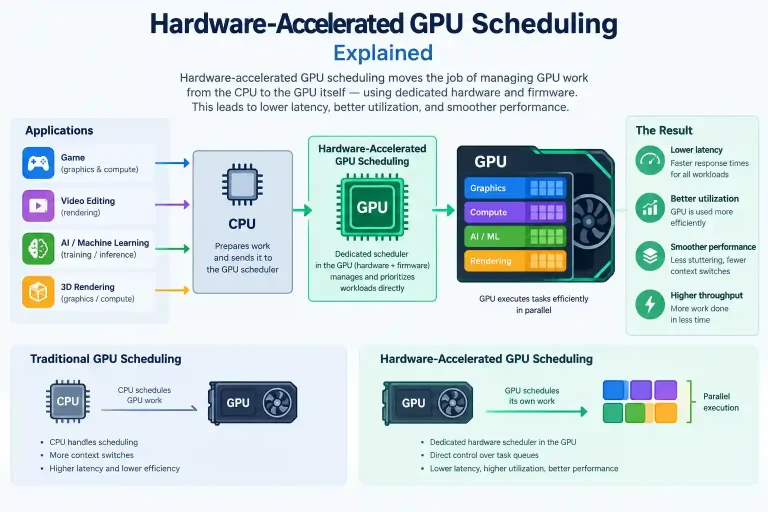
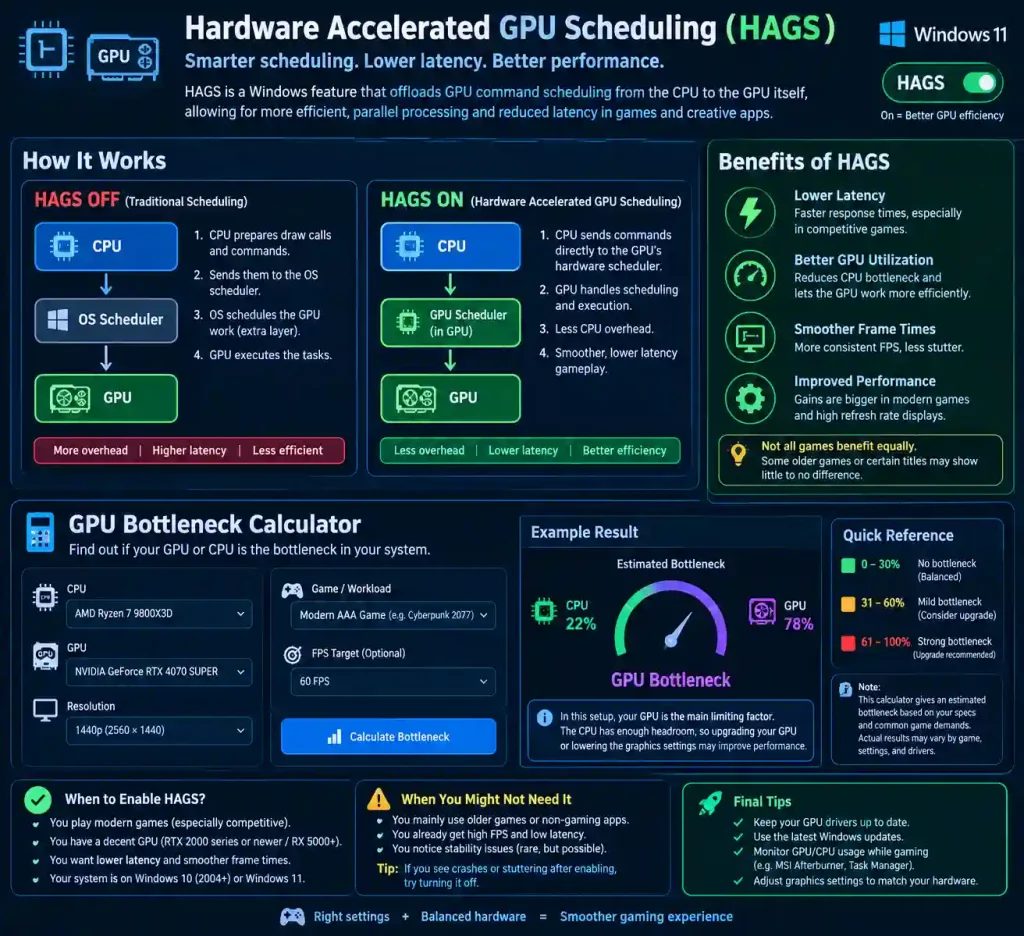
HAGS is a Windows feature from Microsoft that arrived with the Windows 10 May 2020 update (version 2004). Normally a CPU thread and the graphics driver decide when GPU tasks run. With HAGS ON, a dedicated scheduling processor on the GPU handles much of this work itself. You can read Microsoft’s own explanation in the DirectX Developer Blog.
This can lower CPU overhead and help in CPU-heavy games, video editing and multitasking. It does not add raw power to your graphics card, so think of it as an optimization, not an upgrade.
Which GPUs and Windows Versions Support HAGS?
- Windows: Windows 10 (version 2004 or later) or Windows 11
- NVIDIA: GTX 1000 series and newer, including RTX 40 and RTX 50 series
- AMD: RX 5000 series and newer
- Intel: Arc and recent integrated graphics
- Drivers: A recent driver with WDDM 2.7 or higher
Very old graphics cards may not show the option at all. On weak GPUs with low VRAM, turning it ON can sometimes cause stutters instead of smoothness. Windows 11 often has HAGS enabled by default, so check your current setting first.
HAGS and Bottlenecks: How Are They Related?
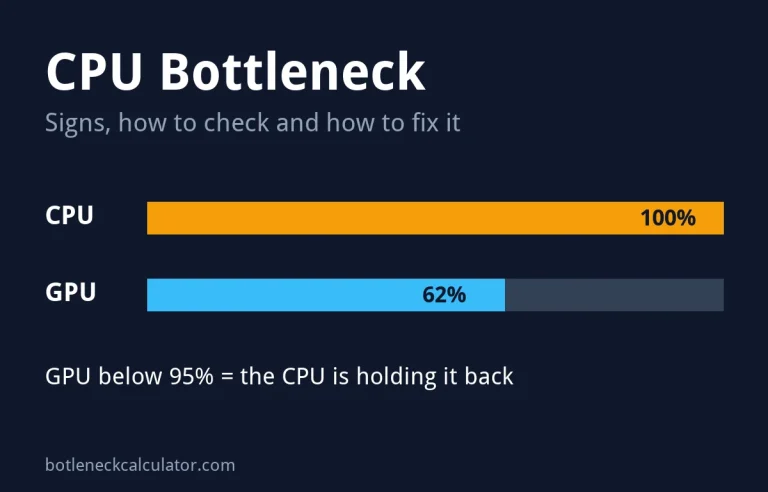
A bottleneck happens when one component (CPU or GPU) limits the performance of the other. HAGS mainly helps when the CPU is the limiting part, because it reduces scheduling work on the CPU.
Before testing HAGS, find out where your bottleneck really is. A PC bottleneck calculator shows whether your processor and graphics card are well matched. On a notebook, a bottleneck calculator for laptop hardware is especially useful, because laptop CPUs and GPUs often run at lower power limits.
How to Choose a Trusted Bottleneck Calculator
Some calculators are hosted on free platforms such as Netlify, so always check who runs the tool before you trust it. A trusted bottleneck calculator should:
- Support your exact CPU, GPU, resolution and game type
- Explain results clearly, not just show one percentage
- Stay updated with new hardware
- Never ask for personal information
Whichever tool you use, treat the result as an estimate. The best bottleneck calculator is the one you combine with real testing on your own PC.
What Independent Tests Show: HAGS ON vs OFF
We have not run our own lab benchmarks for HAGS, so this section summarises published tests from independent reviewers and what Microsoft says about the feature.
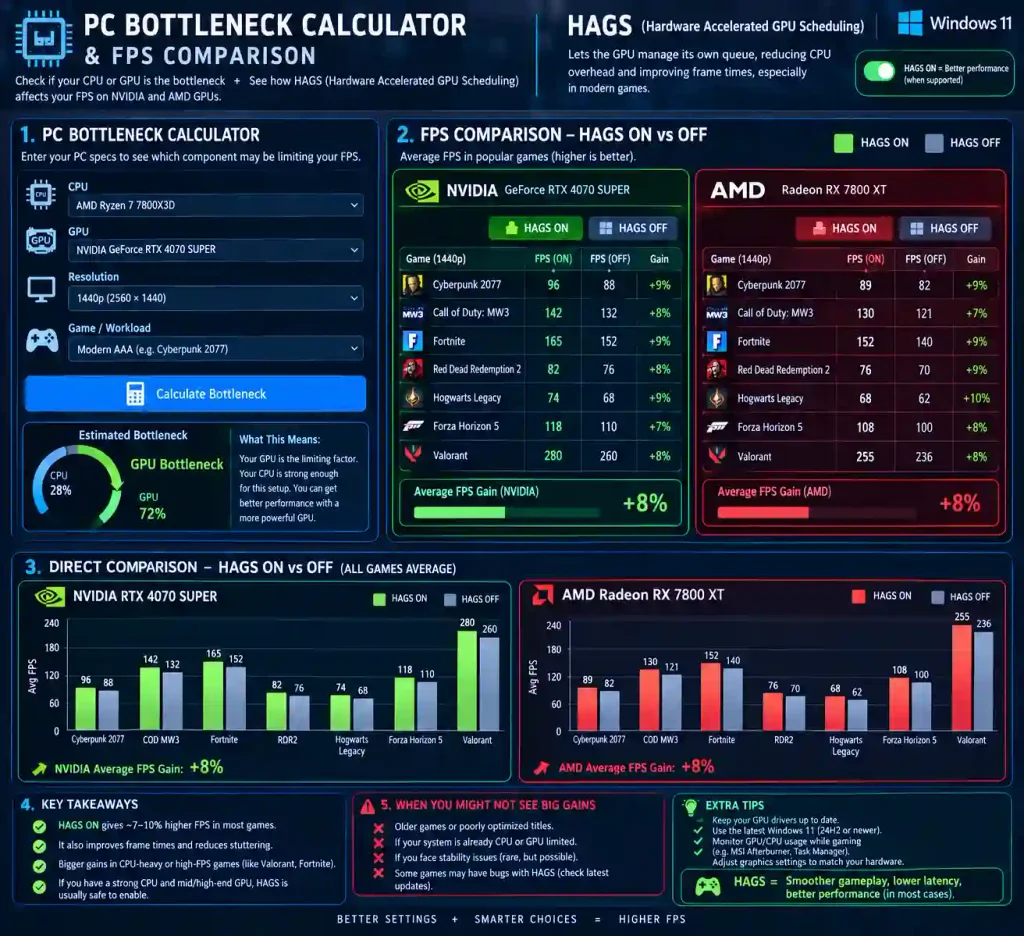
- Tom’s Hardware tested an RTX 2080 Ti with a Core i9-9900K and a Ryzen 9 3900X, plus a GTX 1050, across five games at 1080p. Averaged over all tests, HAGS changed performance by between 0.03% slower and 0.06% faster. Some games gained a few percent, others lost a few, and the reviewer called the overall result a wash.
- Gamers Nexus tested a CPU-limited Core i3-10100 and a Core i9-10900K and found no significant improvement in average FPS, 1% lows or frame times. With the weaker CPU, F1 2019 was about 1.6 to 2.4% slower with HAGS on, and Red Dead Redemption 2 showed frame-time spikes that looked like a bug.
- Microsoft, which added the feature in the Windows 10 May 2020 update, says the change should be transparent and that users should not notice any significant difference. HAGS needs a supported GPU and a WDDM 2.7 or newer driver.
What this means for you
On its own, HAGS rarely changes FPS by more than a few percent in either direction, so it will not fix a CPU or GPU bottleneck. The main reason to keep it on today is that some features depend on it, most importantly DLSS Frame Generation on RTX 40 and RTX 50 cards. If one particular game stutters after you enable it, switch it off for that test and compare, using the method below.
Sources: Tom’s Hardware – GPU hardware scheduling tested; Gamers Nexus – HAGS benchmarks; Microsoft DirectX Developer Blog – Hardware Accelerated GPU Scheduling.
HAGS and DLSS Frame Generation
This is the one case where HAGS is not optional. On NVIDIA RTX 40 and RTX 50 series cards, DLSS Frame Generation will not work unless HAGS is ON in Windows. NVIDIA lists it as a requirement in its Streamline developer documentation.
If the Frame Generation option is greyed out in your game, turn HAGS ON, restart your PC and check again. AMD FSR does not strictly require HAGS, although some players see a small benefit from having it enabled.
Benefits of Enabling HAGS
Smoother Gameplay
- Reduces CPU load by letting the GPU manage its own tasks
- Can slightly improve 1% and 0.1% low FPS
- May reduce micro-stutters in some games (results vary by system)
Better Features and Stability
- Required for DLSS Frame Generation on NVIDIA RTX 40 and 50 series cards
- Can slightly reduce input lag in fast-paced games
- Improves stability when gaming while streaming or browsing
- Helps newer GPUs manage VRAM more efficiently
- May help in creative apps like Blender and After Effects
Possible Drawbacks of HAGS
Performance Issues
- Many users see no FPS difference at all
- Weak or older GPUs may perform slightly worse
- Can use more VRAM, which may hurt GPUs with 8GB or less
Compatibility Issues
- Some older games may stutter or behave oddly
- Occasional driver bugs can cause instability
- May cause problems with remote tools like Parsec or RDP
- VSync + HAGS on Windows 11 has caused stutters for some users
Should You Enable Hardware Accelerated GPU Scheduling?
- RTX 40 or 50 series using DLSS Frame Generation: Keep it ON. Frame Generation will not work without it.
- Modern GPU with updated drivers: Try it ON. If there are no problems, keep it.
- Older or low-VRAM GPU: Test carefully, because stutters are more likely.
- Lag, crashes or stutters: Turn it OFF and compare.
How to Test HAGS Properly
- Use the same game scene, resolution and settings each time.
- Record average FPS and 1% lows with a tool like MSI Afterburner. MSI laptop owners can also use the built-in overlay if their model has one.
- Change only HAGS, restart your PC, and repeat the test.
- Keep the setting with better 1% lows and fewer stutters.
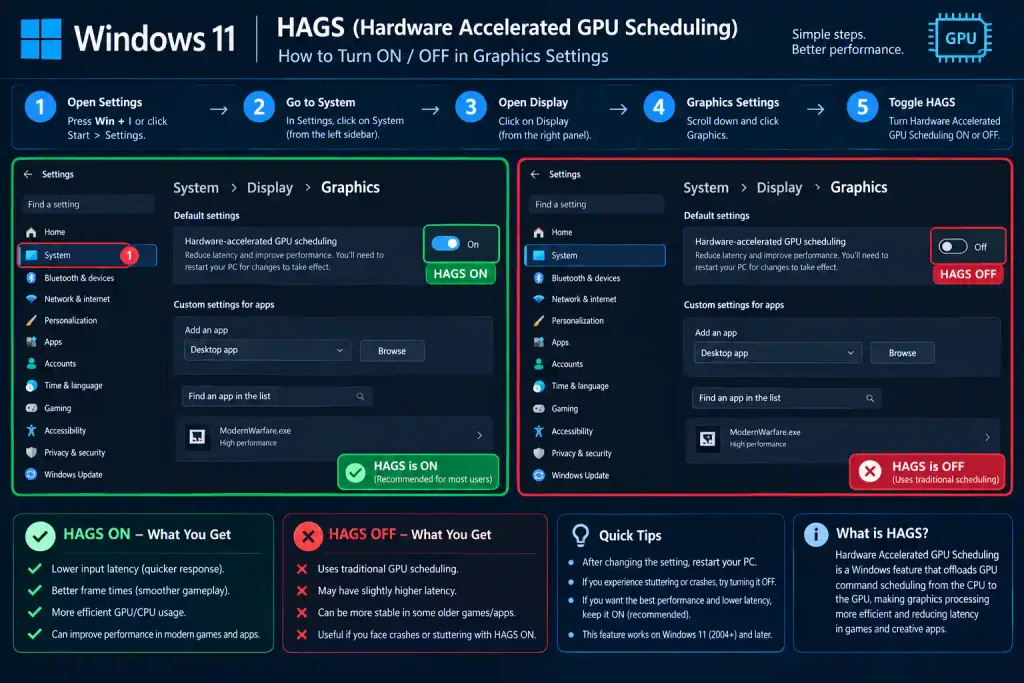
How to Enable or Disable HAGS in Windows 11
- Open Settings
- Go to System > Display
- Click Graphics
- Open Default graphics settings (on some builds the toggle is shown directly on the Graphics page)
- Switch Hardware-accelerated GPU scheduling ON or OFF
- Restart your PC
If the option is missing, update your graphics driver and Windows first.
How to Enable HAGS in Windows 10
- Make sure you are on Windows 10 version 2004 (May 2020 Update) or newer.
- Open Settings > System > Display.
- Scroll down and click Graphics settings.
- Click Change default graphics settings.
- Switch Hardware-accelerated GPU scheduling ON.
- Restart your PC.
How to Check or Change HAGS in the Registry (Advanced)
Only do this if the normal setting is missing or locked, and back up your registry first.
- Press Win + R, type regedit and press Enter.
- Go to HKEY_LOCAL_MACHINE\SYSTEM\CurrentControlSet\Control\GraphicsDrivers
- Find the value named HwSchMode.
- A value of 2 means HAGS is ON, and a value of 1 means it is OFF.
- Restart your PC after any change.
Is a Bottleneck Calculator Reliable? What Reddit Says
Search for “bottleneck calculator Reddit” and you will see mixed opinions. Some gamers call these tools inaccurate, while others find them handy for quick checks. Both are partly right. A calculator cannot know your game, RAM speed or drivers, so use it as a starting point. For a quick check, try a trusted bottleneck calculator and compare its result with your in-game monitoring.
Conclusion
Hardware Accelerated GPU Scheduling is about efficiency, not instant FPS gains. On modern systems it can make games feel a little smoother, and it is required for DLSS Frame Generation. On older or weaker hardware it may cause stutters.
The best approach is simple: find your weak link with a bottleneck calculator, test HAGS ON and OFF on your own PC, and keep whichever setting performs better.
About the Author
Usama Sohail writes about PC hardware and gaming performance.
FAQs
What is Hardware Accelerated GPU Scheduling (HAGS)?
It is a Windows feature that lets the GPU’s own scheduler manage tasks that the CPU and graphics driver normally handle. Microsoft introduced it with the Windows 10 May 2020 update. It is meant to lower scheduling overhead, not to add raw GPU power.
Does HAGS really improve gaming performance?
Average FPS usually changes by only a few percent. Independent tests by Tom’s Hardware and Gamers Nexus also found no consistent change in 1% lows, and a few games ran slightly worse. Results depend on your game, CPU, GPU and driver, so test it on your own PC.
Is HAGS required for DLSS Frame Generation?
Yes. On NVIDIA RTX 40 and 50 series cards, DLSS Frame Generation needs HAGS enabled in Windows. If the option is greyed out in a game, turn HAGS ON and restart. AMD FSR does not strictly require it.
Does HAGS help with CPU bottlenecks?
It can slightly reduce CPU scheduling overhead, which may help in CPU-limited games. It will not fix a weak processor. Use a GPU bottleneck calculator to see which part limits your system, then confirm with real testing.
Does HAGS increase VRAM usage?
It can in some cases, because the GPU handles more of its own memory management. This matters most on cards with 8GB of VRAM or less. If you notice texture pop-in or stutter, compare VRAM usage with HAGS ON and OFF.
Why do some users feel no difference after enabling HAGS?
If your game is GPU-limited rather than CPU-limited, there is little scheduling overhead to remove. In that case average FPS barely changes. The feature is also designed to be mostly invisible, so small gains are normal.
Why does HAGS cause stutters for some people?
Common causes are outdated drivers, low VRAM, some older games and VSync conflicts on Windows 11. Update your graphics driver first. If the stutter is repeatable, turn HAGS OFF and compare.
Does Valorant benefit from hardware accelerated GPU scheduling?
Light esports games like Valorant are often CPU-bound, so some players see slightly steadier frame times with HAGS ON. The gain is small, and some players see none. Test both settings in the same practice range.
Why do some games run worse with HAGS enabled?
Older titles, driver bugs and low-VRAM cards can react badly to HAGS. Performance also varies from game to game. If a specific game runs worse, turn HAGS OFF and recheck.
Is HAGS safe to enable? Can it damage hardware?
It is safe and cannot damage your hardware. It is a scheduling setting in Windows, and you can switch it OFF at any time. The worst case is stutter or a driver issue, which a restart and a driver update usually fix.
Why is the HAGS option missing on my PC?
Your GPU, driver or Windows version may be too old. You need Windows 10 version 2004 or newer and a driver with WDDM 2.7 or higher. Update your graphics driver and Windows, then check the Graphics settings page again.
Can HAGS cause driver crashes?
Rarely. If crashes or driver timeouts start right after enabling it, disable HAGS and update your graphics driver. If the problem stays gone with HAGS OFF, leave it OFF.
Should I enable hardware accelerated GPU scheduling on Windows 11?
On a modern GPU with updated drivers, try it ON and keep it if it is stable. If you use DLSS Frame Generation, keep it ON. If you see stutter or worse 1% lows, turn it OFF.
Does HAGS work on Windows 10 and on RTX 50 series cards?
Yes to both. HAGS works on Windows 10 version 2004 and newer, and on RTX 50 series cards with a current driver. DLSS Frame Generation on RTX 50 series also needs HAGS ON.
Which is the best bottleneck calculator for gaming PCs and laptops?
No single tool is perfect. Choose a trusted calculator that supports your exact CPU and GPU, then confirm with real game testing. A laptop bottleneck calculator should also consider power limits.