Why Does My High-End PC Still Stutter? Frame Time, Bottlenecks & Fixes for 2026
You built a beast: a flagship GPU, a fast CPU, maybe a 240Hz monitor. Your FPS counter says 160. So why does the game still feel jerky, like it’s catching its breath every few seconds?
If you’ve searched things like “pc stutters even with high fps” or “1% lows way lower than average fps”, you’re not imagining it. High FPS and smooth gameplay are not the same thing, and understanding the difference is the first step to actually fixing it.
This guide walks through the real causes of stutter on powerful rigs, how to diagnose them properly, and the exact settings that fix them. No “just update your drivers” filler.On this page
Table of ContentsShow or hide all 7 sectionsShowHide
FPS Is a Lie: Understand Frame Time Instead
Average FPS tells you how many frames rendered over a second. It says nothing about when those frames arrived.
Picture two drives that both average 60 mph:
- One cruises steadily the whole way.
- The other sprints at 120 mph, then sits still for a while.
Same average, completely different experience. Your GPU does the exact same thing when frame delivery is inconsistent, a problem called frame time variance or poor frame pacing.
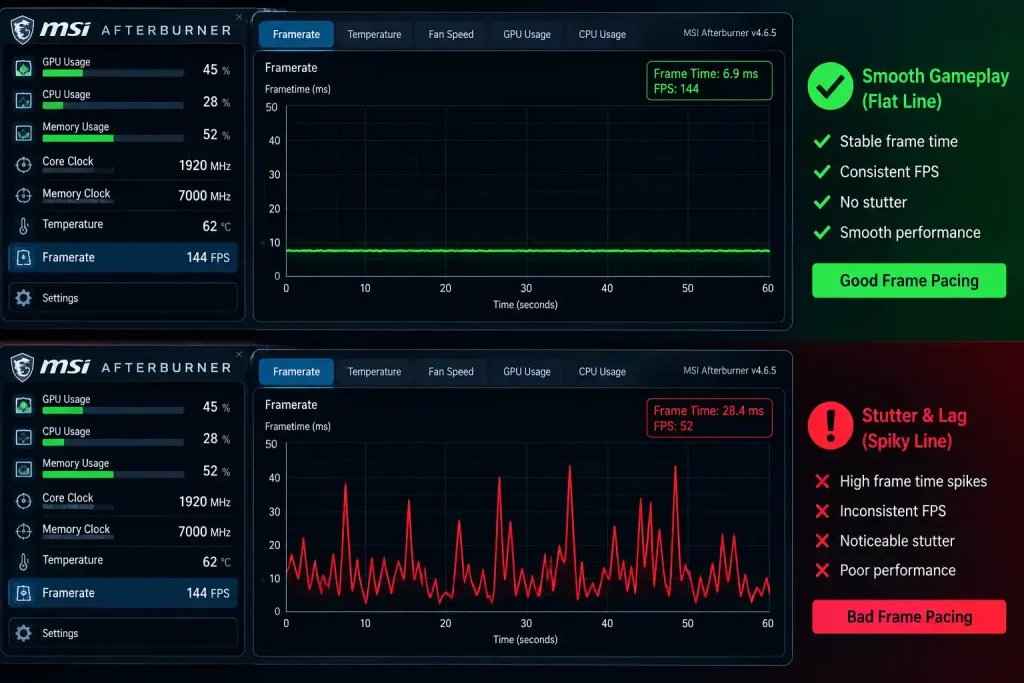
Frame time is simply how many milliseconds it takes to render one frame. A rock-solid 60 FPS needs a new frame every 16.6ms, consistently. If most frames land in 10ms but one spikes to 90ms, your average stays high while you feel a hitch.
Why 1% and 0.1% Lows Matter More Than Average FPS
Instead of chasing the average, look at:
- 1% Low FPS, the average of your worst-performing frames
- 0.1% Low FPS, an even harsher look at your absolute worst spikes
An average of 160 FPS with 1% lows sitting at 45 is a textbook high-end PC stutter pattern, and it usually shows up exactly when you least want it: mid-fight, loading a new area, or panning the camera fast.
You can sanity-check your own CPU/GPU pairing, and whether the combo is even capable of stable lows, using our free CPU and GPU bottleneck calculator before chasing settings tweaks.
Step 1: Diagnose Before You Tweak Anything
Guessing wastes hours. Get a frame time graph on screen first.
Tools worth installing
- MSI Afterburner + RivaTuner Statistics Server, enable the “Frametime” overlay. You want a flat line; spikes mean visible stutter.
- CapFrameX, better for logging a full session and digging into the data afterward.
What to watch for while the stutter happens
| Symptom | Likely cause |
|---|---|
| One CPU core pinned at 100%, GPU sitting at 70–80% | CPU-bound bottleneck (common in strategy/sim games) |
| Clock speeds dropping suddenly | Thermal throttling |
| VRAM usage maxed, then a hard freeze | VRAM overflow spilling to system RAM/SSD |
| Stutter tied to mouse movement | Polling rate flooding the CPU (see below) |
If the imbalance is really a mismatched CPU/GPU pair rather than a settings issue, a quick bottleneck check for your exact combo will tell you in seconds whether the hardware itself is the ceiling.
Step 2: BIOS and System-Level Fixes
Most “high-end stutter” cases trace back to settings nobody enabled at build time.
Turn on XMP/DOCP (yes, really)
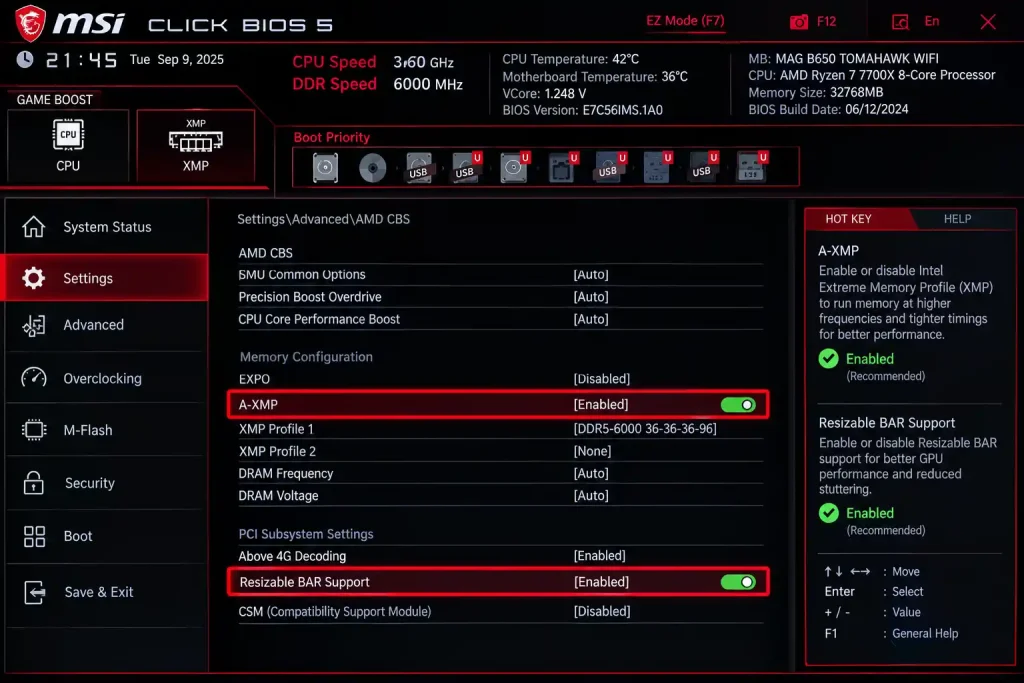
An enormous number of high-end builds are still running RAM at stock JEDEC speeds, think 4800MHz instead of the rated 6000MHz. This quietly wrecks your 1% lows. Go into BIOS, enable XMP (Intel) or DOCP/EXPO (AMD), and confirm the speed actually applied.
Enable Resizable BAR
Resizable BAR lets the CPU address the GPU’s full frame buffer instead of small chunks at a time. In modern titles it smooths out frame delivery noticeably. Confirm it’s active in both BIOS and your GPU control panel, enabling it in only one place is a common miss.
Turn off VBS / Memory Integrity for gaming rigs
Windows 11’s Virtualization-Based Security (VBS) and Core Isolation/Memory Integrity can cost several percent of average FPS, and the hit to 1% lows tends to be worse. Independent testing since the feature was turned on by default has repeatedly shown gaming performance trade-offs, which is why Microsoft’s own Core Isolation support documentation lets you toggle it off per device. On a dedicated gaming machine, disabling this under Windows Security → Device Security is one of the highest-impact, lowest-effort fixes available.
Check for the Windows 11 24H2 micro-stutter patch
If you’re on 24H2, confirm you have KB5058499 or newer, earlier builds shipped with a known micro-stutter bug. Quick PowerShell check:
# Print the Windows build and check for the KB5058499 stutter fix
winver
Get-HotFix -Id KB5058499
No result from the second command means the patch isn’t installed yet.
Fix Intel P-Core/E-Core scheduling issues
On 12th–14th Gen Intel chips, Windows occasionally schedules a demanding game thread onto a weaker E-core instead of a P-core, causing random stutter in titles like Star Citizen or Cyberpunk 2077. Update your BIOS first; if it persists, tools like Process Lasso let you pin the game to P-cores only, or disable E-cores in BIOS as a test.
Step 3: Display and Sync Settings
The correct sync setup (not what most people use)
- G-Sync/FreeSync, ON, in your GPU driver panel
- V-Sync, ON in the driver panel, OFF in-game
- Frame cap, set 2–3 FPS below your monitor’s max refresh (e.g., 141 on a 144Hz panel)
This configuration, detailed extensively by display-testing site Blur Busters’ G-Sync 101 guide, keeps your variable refresh rate active at all times, eliminating tearing without the input lag penalty of traditional V-Sync.
Turn on low-latency modes
NVIDIA Reflex or AMD Anti-Lag sync the CPU and GPU work queues, cutting the render queue depth and making input feel noticeably snappier, especially useful if your stutter is really a latency problem in disguise.
Clear your shader cache after driver updates
New driver, sudden stutter on high FPS that wasn’t there before? Old shader caches can conflict with the new driver build. Clear %LocalAppData%\NVIDIA\DXCache (NVIDIA) and let the game rebuild shaders, a one-time hit that often fixes stutter appearing right after an update.
Step 4: Hardware You Might Be Overlooking
Your SSD might be the bottleneck, not your GPU
Open-world games stream huge amounts of asset data in real time. A slow SATA SSD, or worse, an HDD, can’t keep up, causing “traversal stutter” while the engine waits on data. Moving titles like Cyberpunk 2077 or GTA V to an NVMe drive frequently eliminates this entirely. If your motherboard supports it, drives compatible with DirectStorage cut CPU overhead further.
The high polling rate mouse trap
A 4000Hz or 8000Hz polling rate mouse sounds great on paper, but on a CPU that’s already working hard, 8,000 signals a second competes for CPU time with the game itself. If FPS tanks specifically when you move the mouse, drop polling back to 1000Hz and retest.
Alt text suggestion: “Mouse software polling rate setting lowered to 1000Hz to fix CPU-related stutter”
PSU transient spikes
Modern RTX 30/40/50-series cards draw power in short, sharp spikes far above their rated draw. A weak or aging PSU can’t hold voltage through these spikes, so the GPU downclocks momentarily to protect itself, and that split-second downclock is exactly what you feel as a stutter. If you’re unsure your supply has enough headroom, our PSU sizing calculator is worth five minutes before you start swapping other parts.
Your Stutter-Fixing Checklist
- Diagnose, frame time graph, not the FPS counter
- BIOS, XMP/DOCP on, Resizable BAR on
- Windows, VBS/Memory Integrity off, 24H2 patched, P-cores prioritized
- Display, G-Sync/FreeSync on, frame cap set, V-Sync off in-game
- Hardware, game library on NVMe, mouse polling at 1000Hz, PSU headroom confirmed
If after all this the stutter persists, it’s worth ruling out a genuine hardware mismatch. Run your specific parts through our CPU/GPU bottleneck calculator to see whether the CPU is actually capable of feeding your GPU at your target resolution.
Want to measure stutter properly? Read what 1% low FPS means and how to improve it.
Sources: Intel PresentMon (official GitHub); CapFrameX – frame-time capture and analysis; Tom’s Hardware – GPU hardware scheduling tested.
Frequently Asked Questions
Why does my PC stutter even though my FPS is high?
Usually inconsistent frame pacing, your average stays high because most frames render fast, but occasional spikes in frame time create a visible hitch. Check 1% and 0.1% lows, not the average.
Does Resizable BAR fix stuttering on its own?
Not always. It helps frame delivery in supported titles, but it needs to be paired with other fixes (VBS off, XMP on) for high-end rigs. If Resizable BAR alone isn’t helping, check whether VBS is still active, the two commonly get confused for each other.
Is a 4000Hz polling rate mouse bad for FPS?
It can be, on CPU-limited systems. If stutter appears specifically during mouse movement, drop to 1000Hz and see if it resolves.
Can a weak power supply cause micro stutter on an RTX 4090 or 5090?
Yes. Transient power spikes on high-end GPUs can exceed what an undersized or aging PSU can deliver, forcing a momentary downclock that’s felt as a stutter.
Should I disable VBS to fix game stuttering?
On a dedicated gaming PC, yes, it’s a low-risk change with a measurable 1% low improvement. Skip this if the machine also handles sensitive work tasks that rely on that security layer.
About BotleneckCalculator
We build free tools to help PC builders match CPUs and GPUs without overspending or under-buying. Every guide is checked against our own bottleneck and FPS models before publishing. · Try the bottleneck calculator →