Why Is My GPU Usage Low in Games? (Causes and Fixes)
Low GPU usage in games is normal when your FPS already hits your target or your monitor’s refresh rate. It is a problem only when your FPS is also low or the game stutters. In that case the cause is usually a CPU limit, a frame cap, or a game running on the wrong graphics chip.
This guide shows you how to tell the difference in about five minutes and what to change if something is wrong. If you want a quick estimate first, enter your parts in our bottleneck calculator.

Table of ContentsShow or hide all 8 sections ShowHide
What GPU usage actually measures
GPU usage shows how much of the time your graphics card was busy working on frames. It does not show how powerful the card is or how good the game looks.
If a reading says 60%, the GPU waited for 40% of that time. It waits when something else is slower, such as the CPU, a frame limit or your monitor. So the number is a clue, not a score.
Is low GPU usage normal?
Use this table first. Find the row that matches your situation.
| What you see | Normal? | Likely reason |
|---|---|---|
| Low GPU usage, FPS at monitor refresh rate | Yes | V-Sync or frame cap is doing its job |
| Low GPU usage, high FPS in esports games | Yes | Light games need little GPU power |
| Low GPU usage, FPS below your target | No | CPU limit, wrong GPU or a setting issue |
| GPU usage drops suddenly in busy scenes | Depends | Crowded scenes put more load on the CPU |
| Low GPU usage plus stutter | No | CPU limit, RAM, drivers or throttling |
A simple rule: if FPS is good and the game feels smooth, ignore the percentage.

The 8 most common causes
1. The CPU cannot prepare frames fast enough
This is the most common cause of low GPU usage with low FPS. The CPU must send instructions for every frame. If it is slow, the GPU finishes early and waits.
The classic sign is one CPU core near 100% while the GPU sits at 50 to 80%. Overall CPU usage can still look low, because many games lean on just one or two cores. See our CPU tier list to check where your processor stands.

2. A frame cap or V-Sync is limiting the GPU
Once a game reaches its cap, the GPU has no reason to work harder. This is expected behavior. Check the in-game FPS limit, V-Sync and the NVIDIA or AMD driver settings.
If you use G-SYNC or FreeSync, a cap about 3 FPS below your monitor’s maximum refresh rate usually gives the smoothest result.
3. The game is running on the integrated GPU
This is common on laptops and on desktops with the monitor plugged into the motherboard. The game uses weak integrated graphics while your real card sits idle.
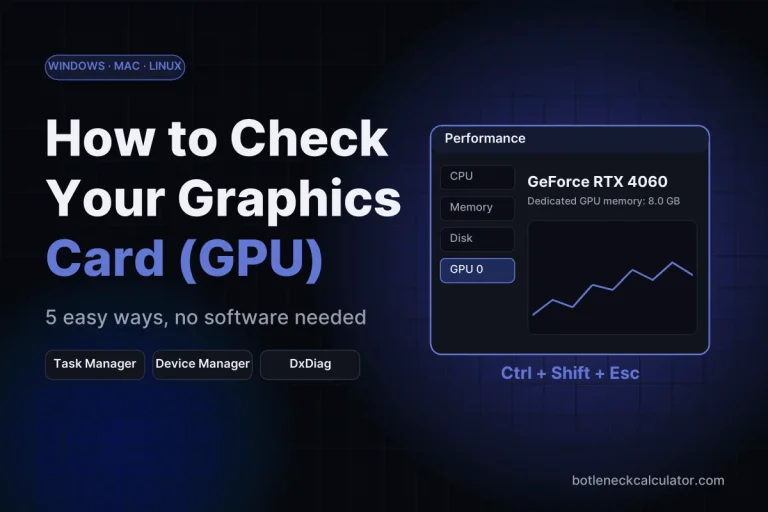
Open Settings > System > Display > Graphics, add the game, choose High performance, and make sure the monitor cable is in the graphics card. Not sure which card you have? Follow our guide on how to check what graphics card you have.
4. Resolution and settings are too low for your card
At 1080p with low settings, a strong GPU finishes each frame very fast, so the CPU becomes the limit. Raising resolution or quality shifts work back to the GPU. That is why the same PC can look CPU-limited at 1080p and GPU-limited at 4K. For a good match, see the best GPU for your monitor.
5. Slow or single-channel RAM
One RAM stick, or RAM running below its rated speed, slows down how fast data reaches the CPU. Use two sticks in dual-channel mode and enable XMP (Intel) or EXPO (AMD) in the BIOS.
6. Overheating or power limits
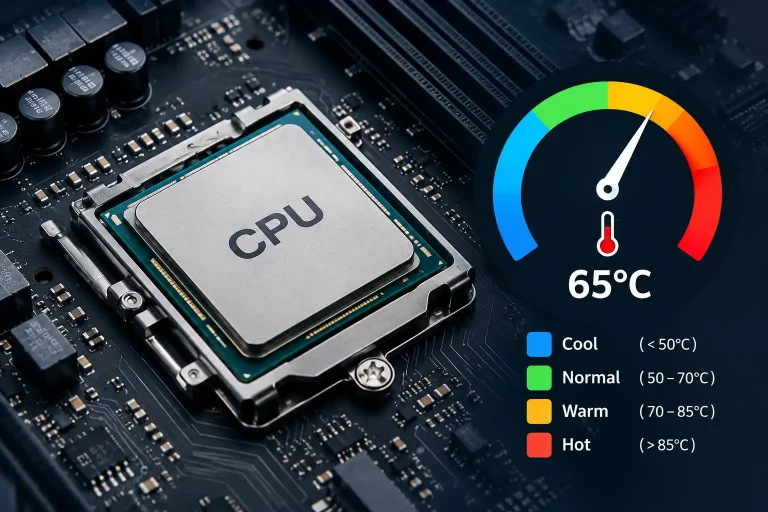
When parts get too hot, they lower their clocks to stay safe. Usage and FPS then drop slowly, often after 10 to 20 minutes. Check your GPU temperature range and CPU temperature monitoring. On laptops, also check that the charger is plugged in and the power mode is not Battery Saver.
7. Old drivers or background apps
Outdated drivers and heavy background programs (browser tabs, recording tools, launchers) can hurt performance. Try updating your GPU drivers and closing extra apps. Microsoft also explains the basics in its guide to updating drivers in Windows. If your card is older than expected, run through our GPU health check as well.
8. Upscaling (DLSS, FSR) and older game engines
Upscalers such as DLSS and FSR render the game at a lower internal resolution, so the GPU has less work and the CPU is more likely to become the limit. Frame generation can raise FPS further, but it does not make a slow CPU faster.
The game’s graphics API matters too. Older DirectX 11 games push more work through one CPU thread, while DirectX 12 and Vulkan games spread it across more cores. The same PC can therefore show lower GPU usage in an older game than in a newer one.
How to diagnose it step by step
- Install MSI Afterburner with RivaTuner and turn on the overlay for GPU usage, CPU usage per core, FPS and frame time.
- Play one demanding scene and note the numbers.
- Check if FPS is capped. If FPS sits exactly at your refresh rate, it is probably a cap.
- Look at CPU cores. One core near 100% with a low GPU points to a CPU limit.
- Lower the resolution. If GPU usage drops and FPS does not rise, the CPU is the limit.
- Raise the resolution or settings. If GPU usage climbs towards 95 to 100%, your GPU is now the limit, which is the healthy situation for gaming.
- Test two or three different games. If only one game has the issue, it is that game’s engine, not your PC.
Tip: Windows Task Manager can show a low GPU number because it may display the wrong engine. Click the small arrow above a GPU graph and select 3D or Graphics to see real gaming load. An overlay tool is more reliable.

Fixes that work
| Problem | Fix |
|---|---|
| CPU limit | Raise resolution, enable ray tracing or higher texture settings, or upgrade the CPU |
| Frame cap or V-Sync | Raise or remove the cap if you want more FPS |
| Wrong GPU in use | Set the game to High performance and move the monitor cable to the graphics card |
| Single-channel or slow RAM | Use dual-channel and enable XMP or EXPO |
| Overheating | Clean dust, improve airflow, adjust the fan curve |
| Laptop power limit | Plug in the charger and use Performance mode |
| Old drivers | Install the latest driver, then restart |
| Background apps | Close extra programs and overlays |
One more option is Resizable BAR. It can help in some games but is not a cause of low usage, so read our Resizable BAR guide before changing BIOS settings.
When should you upgrade?
Upgrade only when all of these are true:
- GPU usage is low while FPS is below your target
- No frame cap or V-Sync is active
- One CPU core is near 100%
- The same issue appears in several games
In that case the CPU is usually the better upgrade. Our CPU upgrade guides and best CPU for gaming in 2026 list can help, and the best GPU for your CPU pages show which cards match your processor. Before buying, test the pairing in the bottleneck calculator and estimate results with the FPS calculator. If you plan a bigger GPU, also check your power needs with the PSU wattage calculator.
If your FPS is already high and smooth, do not upgrade. The number on screen is not a fault.
Final thoughts
Low GPU usage is a clue, not a verdict. Check FPS and frame times first. If both are good, your PC is fine. If not, work through the causes above from cheapest to most expensive: caps, settings, drivers, RAM, cooling, and only then hardware. You can also see whether your games will run well with our Can I Run It tool.
Frequently asked questions
Is it bad if my GPU is not at 100% in games?
No. A GPU below 100% is bad only when FPS is also low or the game stutters. If the game runs smoothly at your target FPS, the usage number does not matter.
What GPU usage is normal while gaming?
In demanding games at high settings, usage of 95 to 100% is normal and means your GPU is the limit. In light or esports games, 40 to 80% is common because the game needs little GPU power.
Why is my GPU usage low and my FPS also low?
This usually means the GPU is waiting on something else. The most common cause is a CPU limit. Others are a wrong GPU being used, slow RAM, overheating or old drivers.
Does a CPU bottleneck cause low GPU usage?
Yes. When the CPU cannot prepare frames fast enough, the GPU finishes early and sits idle, so its usage drops. Check whether one CPU core is near 100% to confirm.
Does V-Sync lower GPU usage?
Yes. V-Sync limits FPS to your monitor’s refresh rate, so the GPU stops working harder once that limit is reached. This is normal.
Why is my laptop GPU usage lower than a desktop?
Laptops share power and cooling between the CPU and GPU, and they run slower on battery. They may also be using the integrated chip. Check our laptop GPU ranking to see what to expect from your model.
Why does Task Manager show low GPU usage while gaming?
Task Manager may be showing the wrong engine graph, or the game may be using the integrated GPU. Select the 3D engine or use an overlay such as MSI Afterburner for accurate numbers.