How to Check Your PC Specs on Windows 11 (CPU, GPU, RAM)
The fastest way to check your PC specs on Windows 11 is Settings > System > About, which shows your processor and RAM. For the graphics card, RAM speed and storage, open Task Manager (Ctrl + Shift + Esc) and click Performance. For everything in one place, including the motherboard, use System Information (msinfo32).
Below are six easy ways to find your CPU, graphics card, RAM, storage and motherboard, plus what to do with your specs once you have them. Already know your parts? Check how well they work together in our free bottleneck calculator.
Last updated: November 2026
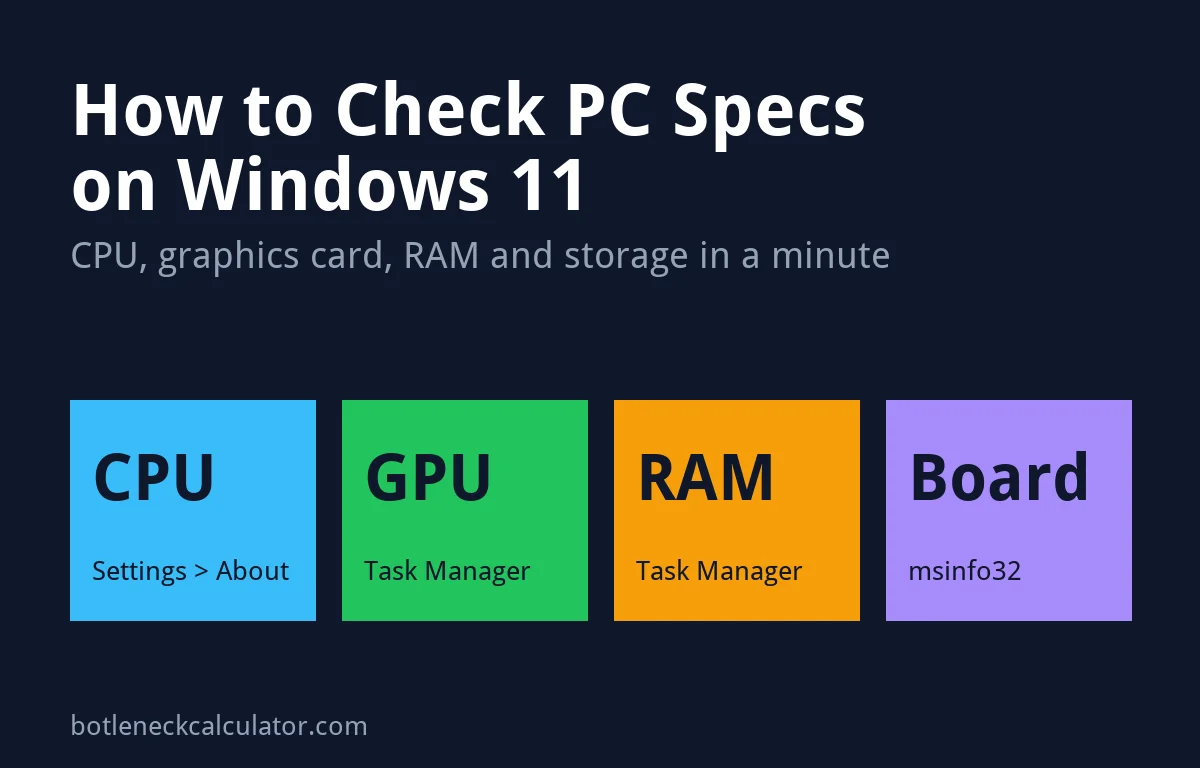
Table of ContentsShow or hide all 9 sectionsShowHide
Quick answer: where to find each spec
| What you want to know | Fastest place to look |
|---|---|
| Processor (CPU) | Settings > System > About, or Task Manager > Performance > CPU |
| Graphics card (GPU) | Task Manager > Performance > GPU |
| RAM amount, speed and slots used | Task Manager > Performance > Memory |
| RAM type (DDR4 or DDR5) | Free tool CPU-Z, Memory tab |
| Storage drives | Task Manager > Performance > Disk |
| Motherboard | System Information (msinfo32) > System Summary |
| Windows version | Settings > System > About |
1. Check your specs in Settings
- Open Settings (Windows key + I) and click System.
- Scroll down and click About.
- Under Device specifications, you see your processor, installed RAM and system type.
- Under Windows specifications, you see your Windows edition, version and build.
Click Copy to paste the details into a message or support ticket. This page does not show your graphics card, so use Task Manager for that.
2. Check CPU, GPU, RAM and storage in Task Manager
- Press Ctrl + Shift + Esc to open Task Manager.
- Click Performance in the left menu.
- Click CPU to see the processor name, base speed, cores and logical processors.
- Click Memory to see the total RAM, speed, form factor and how many slots are used.
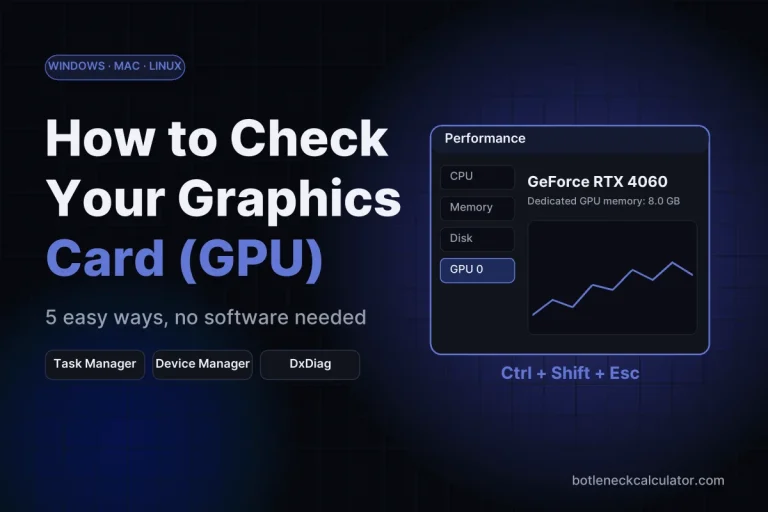
- Click GPU to see your graphics card name and its dedicated GPU memory (VRAM).
- Click each Disk to see your drives and whether they are an SSD or HDD.
On a laptop you may see GPU 0 and GPU 1. One is the graphics built into the processor, the other is the dedicated graphics card that runs games. Our guide on how to check what graphics card you have explains this in more detail.
3. See everything in System Information (msinfo32)
- Press the Windows key, type msinfo32 and open System Information.
- System Summary shows your system model, processor, BIOS version, total memory and motherboard (look for BaseBoard Manufacturer and BaseBoard Product).
- Open Components > Display for graphics card details.
- To save a full report, choose File > Export.
4. Use the DirectX Diagnostic Tool (dxdiag)
- Press Windows key + R, type dxdiag and press Enter.
- The System tab shows your processor, memory and DirectX version.
- The Display tab shows your graphics card name and its memory.
Game support teams often ask for this report. Click Save All Information to create a text file you can send.
5. Use Command Prompt or PowerShell
- In Command Prompt, type
systeminfoand press Enter to list your system details. - In PowerShell, type
Get-ComputerInfofor a full list of hardware and Windows information.
6. Use a free tool such as CPU-Z
Windows does not show everything. The free tool CPU-Z shows your exact processor, motherboard and RAM type (DDR4 or DDR5) and timings, and GPU-Z shows full graphics card details. Download them only from the developer’s official website.
What to do with your PC specs
- Check for a bottleneck: enter your CPU and graphics card in our bottleneck calculator to see if one part holds the other back.
- See if a game will run: compare your parts with the requirements in our Can I Run It tool.
- Estimate FPS: use the FPS calculator to see what frame rate to expect.
- Plan an upgrade: if you have 8 GB of RAM or a single stick, read how much RAM you need for gaming.
Sources: Windows Central – How to check complete hardware specifications on Windows 11; How-To Geek – How to check your RAM amount, type and speed on Windows 11.
Frequently asked questions
How do I check my PC specs without opening the case?
Use Windows itself. Settings > System > About shows the CPU and RAM, and Task Manager > Performance shows the CPU, RAM, graphics card and drives. You never need to open the PC.
How do I know which graphics card I have?
Press Ctrl + Shift + Esc, open Performance and click GPU. The name of your graphics card appears at the top right. You can also see it in dxdiag on the Display tab.
How do I check my RAM speed on Windows 11?
Open Task Manager, click Performance and then Memory. The speed is listed under the graph, next to the slots used. If the speed is much lower than your RAM kit is rated for, turn on XMP or EXPO in the BIOS.
How do I find my motherboard model?
Open System Information (msinfo32) and look for BaseBoard Manufacturer and BaseBoard Product in the System Summary. CPU-Z also shows it on the Mainboard tab.
Do these steps work on Windows 10?
Yes, mostly. Task Manager, msinfo32, dxdiag, systeminfo and CPU-Z work the same way. In Windows 10 Settings, go to System > About.
Is my PC good for gaming?
It depends on your graphics card and processor and the games you play. Enter your parts in our bottleneck calculator and FPS calculator to see the expected frame rate and whether one part is holding the other back.