How to Update GPU Drivers in 2026: Complete Windows 11 & 10 Guide (NVIDIA, AMD & Intel)
Is your favorite PC game suddenly crashing on launch, stuttering during intense firefights, or displaying strange graphical artifacts on screen? Before you worry about faulty hardware, the most frequent culprit is an outdated, corrupted, or generic graphics card driver. Not sure which card you have? Here is how to check what graphics card you have before you download a driver.
Your graphics processing unit (GPU) is the powerhouse of your gaming rig, rendering millions of complex polygons and physics calculations every second. However, without up-to-date driver software, Windows cannot communicate effectively with the graphics silicon. Keeping your GPU drivers current delivers immediate day-zero game support, boosts average frame rates, eliminates micro-stutters, and unlocks cutting-edge technologies like DLSS, FSR, and frame generation.
💡 Quick Answer:
The best and safest way to update GPU drivers in 2026 is through official manufacturer companion software: the NVIDIA App (or GeForce Experience) for NVIDIA graphics cards, AMD Software: Adrenalin Edition for Radeon GPUs, and Intel Arc Control for Intel Arc/Iris GPUs. Avoid third-party driver updaters and avoid relying on Windows Device Manager, which only installs generic, months-out-of-date drivers.
Table of ContentsShow or hide all 11 sectionsShowHide
Driver Update Methods at a Glance: Which Should You Use?
| Update Method | Best For | Speed | Stability & Freshness | Recommended? |
|---|---|---|---|---|
| Official Software (NVIDIA App / AMD Adrenalin / Intel Arc) | 95% of PC Gamers & Creators | 2 Minutes | 100% Latest Game-Ready Drivers | YES (Top Pick) |
| Direct Manual Web Download | Clean System Builds & Offline Rigs | 5 Minutes | Highly Stable WHQL Releases | YES |
| DDU Clean Install (Safe Mode) | Fixing Crashes, Black Screens, or Swapping GPU Brands | 10 Minutes | Removes Corrupted Residual Files | YES (For Troubleshooting) |
| Windows Update (Optional Updates) | Office PCs & Non-Gaming Workstations | Automatic | Basic Microsoft WHQL (3–6 Months Old) | Only for Non-Gamers |
| Windows Device Manager | Emergency Troubleshooting | 1 Minute | Generic Compatibility Driver Only | NO (Avoid for Gaming) |
Why Updating Your Graphics Driver Matters (Beyond Just Higher FPS)
A GPU driver is system-level kernel software that acts as the primary translator between the Windows operating system, modern graphics application programming interfaces (DirectX 12 Ultimate, Vulkan, OpenGL), and your graphics card hardware.
Without an updated driver, your graphics card operates in a basic fallback state. Advanced features such as Hardware-Accelerated GPU Scheduling (HAGS), variable refresh rate (G-Sync/FreeSync), high dynamic range (HDR), and ray tracing remain unoptimized or completely non-functional.
Day-0 Game Optimizations, Crash Fixes, and Security Patches
Whenever blockbuster PC titles launch, GPU engineers work directly with game development studios to release “Day-0” driver updates. These releases contain specialized shader compilation profiles and engine tweaks tailored to that specific game engine. Skipping updates means you risk:
- Constant game crashes, desktop freezes, and DirectX runtime error pop-ups.
- Memory leaks that cause performance to degrade after 30 minutes of gameplay.
- Visual glitches, missing textures, and flickering screen geometry.
- Unpatched kernel vulnerabilities that compromise your Windows system security.
Can Outdated GPU Drivers Cause a PC Bottleneck or Low GPU Usage?
Many gamers who notice their GPU usage stuck at 50% to 70% assume their processor is too weak to keep up. While hardware mismatches are common, outdated or corrupted graphics drivers frequently trigger artificial PC bottlenecks.
When driver shader caches become corrupted or incompatible with a recent game update, your CPU spends excessive cycles waiting on driver draw calls. This CPU-GPU synchronization stall causes your graphics card to sit idle between frame renders, driving down GPU utilization and causing severe frame time spikes.
If your games feel stuttery despite having capable hardware, analyze your system balance using our free Bottleneck Calculator. If our calculator confirms that your CPU and GPU should perform with under 10% bottleneck, yet your in-game telemetry shows low GPU usage, updating or clean-reinstalling your GPU drivers will instantly remove the artificial bottleneck.
💡 Quick Answer:
Updating your GPU drivers provides day-zero game patches, eliminates shader compilation stutter, and fixes artificial bottlenecks where outdated software prevents your graphics card from reaching 99% utilization.
Game Ready Drivers vs. Studio Drivers: Which One Should You Install?
Both NVIDIA and AMD offer different driver branches tailored to specific user workflows. Choosing the right branch ensures stability for your daily tasks.
NVIDIA Game Ready vs. Studio Drivers (Gaming vs. Video Editing)
- Game Ready Drivers (GRD): Designed for gamers who play newly released titles on day one. They release frequently (every 2 to 3 weeks) and include game profiles, DLSS updates, and launch-day hotfixes.
- NVIDIA Studio Drivers (SD): Tailored for creative professionals using software like Adobe Premiere Pro, DaVinci Resolve, Blender, and AutoCAD. Studio Drivers undergo rigorous multi-application stability testing across creative suites. They update less frequently, prioritizing bulletproof stability over day-one game launches.
AMD WHQL (Recommended) vs. Optional (Beta) Drivers
- AMD WHQL (Windows Hardware Quality Labs): Extensively certified by Microsoft for maximum reliability. Ideal for everyday gamers who want dependable stability without unexpected bugs.
- AMD Optional / Beta Drivers: Experimental releases containing early optimizations for brand-new game launches. Recommended only if you are playing a newly released game that specifically requires that update.
💡 Quick Answer:
If you primarily play PC games, always install Game Ready Drivers (NVIDIA) or WHQL Recommended Drivers (AMD). If your PC is a dedicated workstation for 3D rendering, video editing, or animation, choose NVIDIA Studio Drivers.
Method 1: Update GPU Drivers Automatically via Official Manufacturer Software (Best & Recommended)
Using official manufacturer software is the fastest, safest, and most reliable method to keep your graphics card up to date.
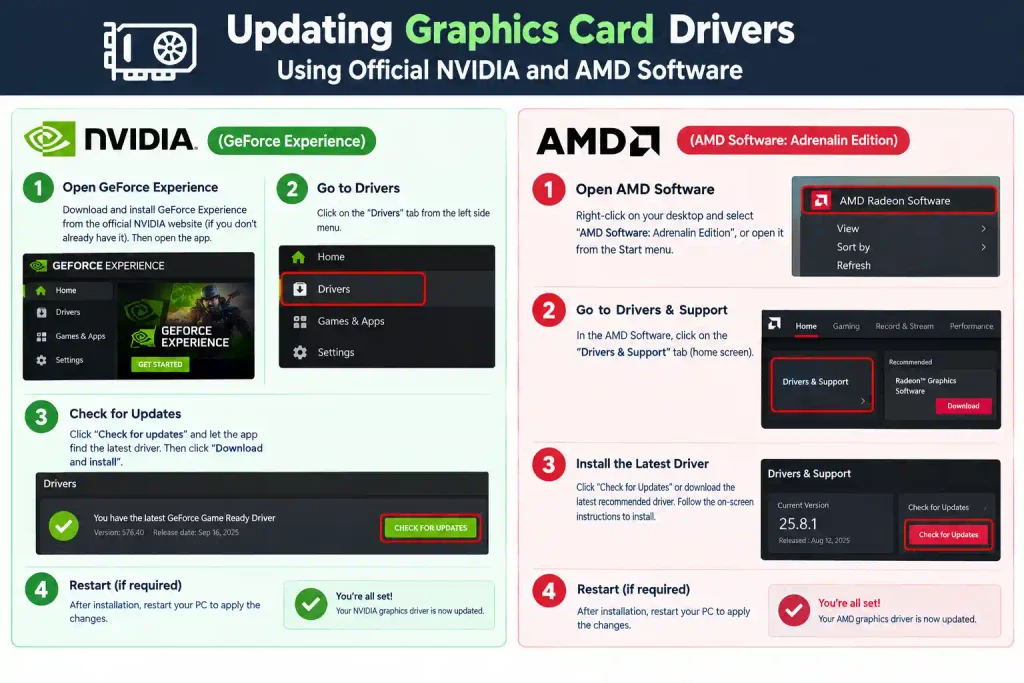
How to Update NVIDIA GPU Drivers (Using the New NVIDIA App & GeForce Experience)
In 2026, NVIDIA has transitioned from the older GeForce Experience software to the streamlined, unified NVIDIA App, which eliminates the mandatory account login requirement and combines driver updates with advanced display settings.
- Launch the Software: Open the NVIDIA App (or GeForce Experience) from your Windows desktop or Start Menu.
- Navigate to the Drivers Tab: Click on the Drivers tab located in the left-hand navigation sidebar.
- Check for Updates: Click the Check for Updates button in the top-right corner.
- Download the Driver: If a new update is available, click Download. The app will download the latest Game Ready Driver directly from NVIDIA’s secure servers.
- Install: Once downloaded, select Express Installation. Your computer screen may flicker black for 2 to 3 seconds during the display driver re-initializationthis is completely normal.
- Restart Your PC: Reboot your computer to ensure all kernel driver services load cleanly.
How to Update AMD GPU Drivers (Using AMD Software: Adrenalin Edition)
AMD’s integrated Adrenalin software provides one of the cleanest driver management interfaces in the industry:
- Open AMD Software: Right-click anywhere on your empty Windows desktop and select AMD Software: Adrenalin Edition (or search for it in the Start Menu).
- Locate the Driver & Software Section: On the Home tab, look at the top-right box labeled Driver & Software.
- Check for Updates: Click Check for Updates.
- Choose Driver Preference: Ensure your update setting is set to Recommended Only for certified stability, or Recommended + Optional if you need day-one support for a brand-new release.
- Download & Install: Click Download, then choose Install. Follow the on-screen wizard and select Keep My Settings.
- Restart: Restart your system once the installation progress bar completes.
How to Update Intel GPU Drivers (Using Intel Arc Control & Driver Support Assistant)
Whether you are running an Intel Arc dedicated graphics card (like the Arc A770 or Battlemage B580) or Intel integrated graphics (Iris Xe / Core Ultra):
- Using Intel Arc Control: Press
Alt + Ior open Intel Arc Control from the Start Menu. Navigate to the Drivers tab, click Check for Updates, and select Install Update. - Using Intel Driver & Support Assistant (DSA):
- Download and install the free Intel Driver & Support Assistant from Intel’s official support portal.
- The tool runs a lightweight background tray icon that automatically opens your default browser and scans your motherboard and GPU.
- If a graphics update is available, click Download, then click Install.
💡 Quick Answer:
Launch your card’s official companion software (NVIDIA App, AMD Adrenalin, or Intel Arc Control), open the Drivers tab, click Check for Updates, and select Express Install. Always restart your PC after installation.
Method 2: How to Manually Download & Install GPU Drivers (Without Extra Software)
If you prefer a clean setup without background utility apps running on your PC, you can download driver installation packages directly from manufacturer support websites.
Finding Your Exact GPU Model in Windows
Before downloading, you must know your exact graphics card model and Windows operating system version:
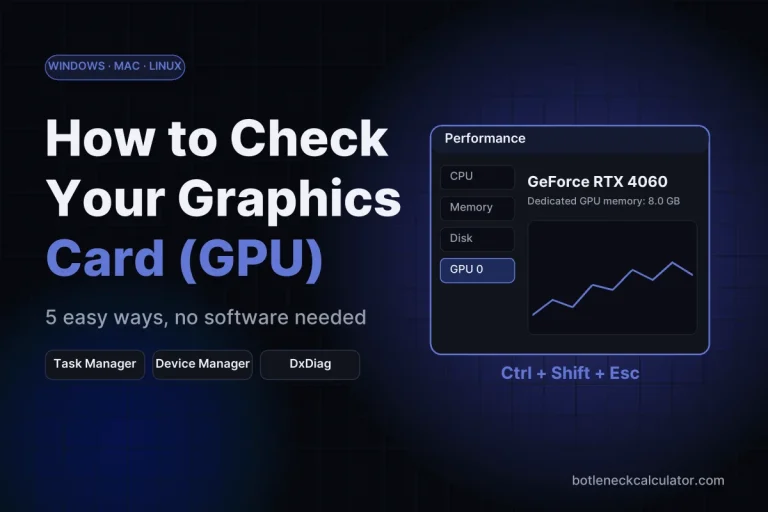
- Press
Ctrl + Shift + Escto open Task Manager. - Click on the Performance tab on the left sidebar.
- Scroll down and click on GPU (usually GPU 0 or GPU 1).
- Look at the top-right corner to see your exact graphics card model (e.g., NVIDIA GeForce RTX 4070 SUPER, AMD Radeon RX 7800 XT, or Intel Arc A750).
Downloading Directly from Official Sources
Always download your installation files exclusively from official manufacturer portals:
- NVIDIA Official Downloads: Visit
nvidia.com/drivers. Select your Product Type (GeForce), Product Series (e.g., GeForce RTX 40 Series), exact GPU model, operating system (Windows 11 or Windows 10 64-bit), and Download Type (Game Ready Driver). Click Search, then click Download. - AMD Official Downloads: Visit
amd.com/support. Use the interactive product selector dropdowns to pick Graphics > your GPU family > specific model. Click Submit, expand your Windows version, and click Download next to the latest Adrenalin package. - Intel Official Downloads: Visit
intel.com/content/www/us/en/download-center. Select Graphics, choose your Intel Arc or Core processor family, and download the latest.exeinstaller.
Once downloaded, double-click the setup file, follow the installation prompts, choose Express Installation, and restart your PC.
💡 Quick Answer:
Check your GPU model in Task Manager under the Performance tab, navigate to the official website of NVIDIA, AMD, or Intel, select your exact card and Windows version, download the installer package, and run setup.
Method 3: How to Update Graphics Drivers via Windows Update & Device Manager
Windows includes built-in tools to manage hardware drivers. However, it is essential to understand when to use them—and when to avoid them.
Updating GPU Drivers in Windows 11
Windows 11 handles third-party hardware drivers through optional update channels:
- Open the Start Menu and click Settings (or press
Win + I). - Click Windows Update in the left sidebar.
- Select Advanced Options > Optional Updates.
- Expand the Driver updates dropdown.
- If your graphics card manufacturer has supplied a certified update to Microsoft, check the box next to your display driver and click Download & install.
Updating GPU Drivers in Windows 10
- Open Settings > Update & Security > Windows Update.
- Click Check for updates.
- If an update appears under View optional updates > Driver updates, select your graphics card and click Download and install.
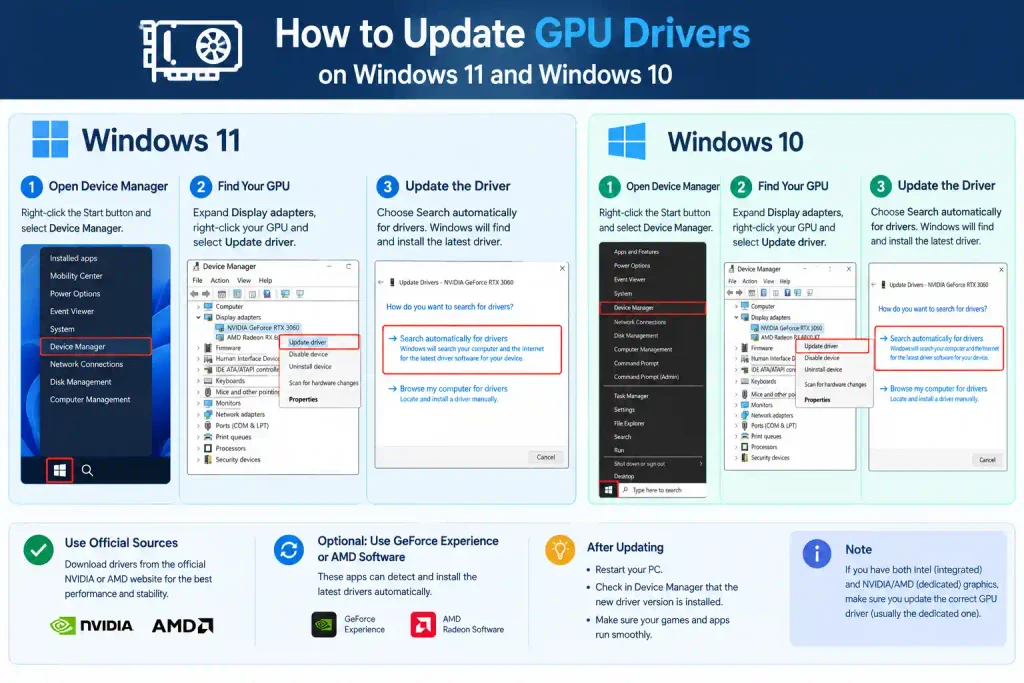
Why You Should Avoid Device Manager for Gaming GPUs (The Generic Driver Trap)
Many outdated online guides still recommend opening Device Manager, right-clicking your graphics card, and clicking “Search automatically for drivers.” You should avoid this method for any gaming or creative PC.
Device Manager does not connect to the live gaming driver databases of NVIDIA or AMD. Instead, it only searches Microsoft’s local Windows Driver Framework (WDF) catalog. At best, it installs a generic WHQL compatibility driver that is 3 to 6 months out of date, lacking game performance profiles, DLSS/FSR integration, and crucial crash patches. For modern gaming, always use Method 1 or Method 2.
💡 Quick Answer:
Use Windows Update only for non-gaming workstations via
Settings > Windows Update > Optional Updates. Avoid Device Manager, as it only installs generic, months-old display drivers that lack modern gaming optimizations.
How to Perform a Clean GPU Driver Install Using DDU (Fix Black Screens & Game Crashes)
Over months of automatic updates, registry keys, leftover shader cache files, and conflicting DLLs can accumulate in Windows, leading to mysterious game crashes, stuttering, or black screens.
When Is a Clean Installation Necessary?
You should perform a clean driver installation with Display Driver Uninstaller (DDU) if:
- You swapped graphics card brands (e.g., upgrading from an AMD Radeon GPU to an NVIDIA GeForce GPU, or vice versa).
- Your display driver repeatedly crashes with a “Display driver nvlddmkm stopped responding and has successfully recovered” error.
- Your frame rates suddenly dropped across all games following a recent driver update.
Step-by-Step Guide to Using Display Driver Uninstaller (Safe Mode)
- Download the Files: Download the latest portable version of Display Driver Uninstaller (DDU) from Wagnardsoft’s official website, and pre-download your latest GPU driver installer from NVIDIA, AMD, or Intel.
- Disconnect the Internet: Unplug your Ethernet cable or disconnect from Wi-Fi. This prevents Windows Update from automatically downloading a generic driver behind your back during the process.
- Boot into Windows Safe Mode:
- Hold the
Shiftkey on your keyboard and click Restart from the Windows Start Menu. - Go to Troubleshoot > Advanced Options > Startup Settings > click Restart.
- When your PC boots to the numbered menu, press
4orF4to enter Safe Mode.
- Hold the
- Run DDU: Open DDU in Safe Mode. On the right side, select your Device Type as GPU, and choose your device brand (NVIDIA, AMD, or Intel).
- Clean and Restart: Click the top button labeled Clean and restart. DDU will scrub all existing display drivers, registry entries, and temporary files, then automatically reboot your PC into normal Windows.
- Install the Fresh Driver: Run the pre-downloaded GPU driver installer, complete the installation wizard, reconnect your internet, and reboot your computer.
💡 Quick Answer:
Download DDU and your fresh driver, disconnect from the internet, boot Windows into Safe Mode, run DDU and select Clean and restart, then install your fresh driver in normal Windows. This resolves 99% of driver corruption issues.
How to Roll Back a GPU Driver If a New Update Causes Stuttering or Crashes
Occasionally, a brand-new driver release may introduce bugs or unstable frame pacing in specific games. If your system was stable yesterday but crashes today after an update, rolling back to your previous driver resolves the issue instantly.
Rolling Back via Windows Device Manager
Windows keeps a backup copy of your previous driver files:
- Press
Win + Xand select Device Manager. - Expand the Display adapters section.
- Right-click your graphics card and select Properties.
- Click the Driver tab at the top.
- Click the Roll Back Driver button.
- Select a reason when prompted (e.g., “Previous driver was more reliable”) and click Yes.
- Restart your computer.
(Note: If the “Roll Back Driver” button is greyed out, Windows has already cleared the previous driver cache).
Installing Previous Stable WHQL Drivers Manually
If Device Manager cannot roll back the driver:
- Visit the advanced driver search page of your manufacturer (e.g., NVIDIA Advanced Driver Search or AMD Previous Drivers).
- Look for the driver version released one month prior to your current version.
- Download the installer, check the box for Perform a clean installation, and run setup.
💡 Quick Answer:
Open Device Manager, expand Display adapters, right-click your GPU, open Properties > Driver tab, and click Roll Back Driver. If greyed out, manually download the previous month’s WHQL release from the manufacturer’s website.
Critical Pro-Tips for Safe GPU Driver Updates
- Always Restart Your PC After Updating: Although modern graphics drivers can reload without a reboot, lingering background services and direct memory handles require a full system restart to initialize properly.
- Avoid 3rd-Party “Driver Updater” Scam Software: Never use third-party “one-click driver boosters” or registry cleaner utilities. These tools frequently bundle aggressive adware, install mismatched OEM laptop drivers on desktop systems, and corrupt Windows driver repositories. Official manufacturer tools are 100% free and safe.
- Stop Windows Update from Overwriting Your GPU Drivers: A common Windows glitch causes Windows Update to overwrite new AMD or NVIDIA drivers with older Microsoft catalog versions. To disable this:
- Press
Win + R, typesysdm.cpl, and hit Enter. - Click the Hardware tab > Device Installation Settings.
- Select No (your device might not work as expected) and click Save Changes.
- Press
💡 Quick Answer:
Always restart your PC after driver updates, never use third-party driver updater utilities, and adjust Windows Device Installation Settings to prevent Windows Update from replacing your official gaming drivers.
Sources: Microsoft Support – Update drivers in Windows; NVIDIA – Driver downloads; AMD – Drivers and support.
Frequently Asked Questions (FAQ)
How often should I update my GPU drivers?
You should update your GPU drivers once every 4 to 6 weeks, or whenever you purchase a newly released game that demands day-zero driver support. If your current games are running smoothly without crashes, you do not need to update on the exact day of every release.
Do I need to uninstall old GPU drivers before installing new ones?
No. Standard driver installers from NVIDIA, AMD, and Intel automatically overwrite older files cleanly. You only need to manually uninstall drivers using DDU if you are switching graphics card brands (e.g., AMD to NVIDIA) or troubleshooting severe game crashes.
Can updating graphics drivers increase FPS in games?
Yes! For newly launched titles, a driver update can improve average frame rates by 5% to 20% through optimized shader compilation profiles and engine patches. For older titles, updates primarily improve frame time consistency and eliminate stuttering.
Why does Windows Update keep replacing my AMD or NVIDIA drivers?
Windows Update prioritizes its own certified WHQL driver catalog over newer manufacturer releases. To fix this, press Win + R, open sysdm.cpl, click Hardware > Device Installation Settings, and select No to prevent Windows from overwriting your drivers.
Is it safe to update GPU drivers while playing a game?
No. Updating drivers terminates active DirectX and Vulkan runtime sessions, which will instantly crash any open games or 3D applications. Always close all games, video editing software, and browsers before starting a driver update.
How do I know if my PC has a hardware bottleneck or a driver issue?
Test your hardware specs using our free Bottleneck Calculator. If our calculator confirms that your CPU and GPU should perform with a balanced load, but your games suffer from low GPU usage and stuttering, your system is experiencing a software bottleneck caused by outdated or corrupted graphics drivers.
Final Verdict: Keep Your Graphics Card Running at Peak Performance
Keeping your graphics card drivers up to date is the single most effective free maintenance step you can take to ensure high frame rates, rock-solid system stability, and seamless compatibility with modern games.
For 95% of users, running the NVIDIA App, AMD Software: Adrenalin Edition, or Intel Arc Control once a month delivers the perfect balance of convenience and performance. If you ever experience unexplained crashes, a quick 10-minute clean installation using DDU in Safe Mode will have your system running like new.
Once your drivers are fully updated, head over to the Bottleneck Calculator to analyze your CPU and GPU balance and verify that your system is operating at its maximum potential!
Many games also run better with Resizable BAR turned on. Learn what it does and how to enable it in our Resizable BAR guide.