How to Check What Graphics Card You Have (Windows, Mac & Linux)
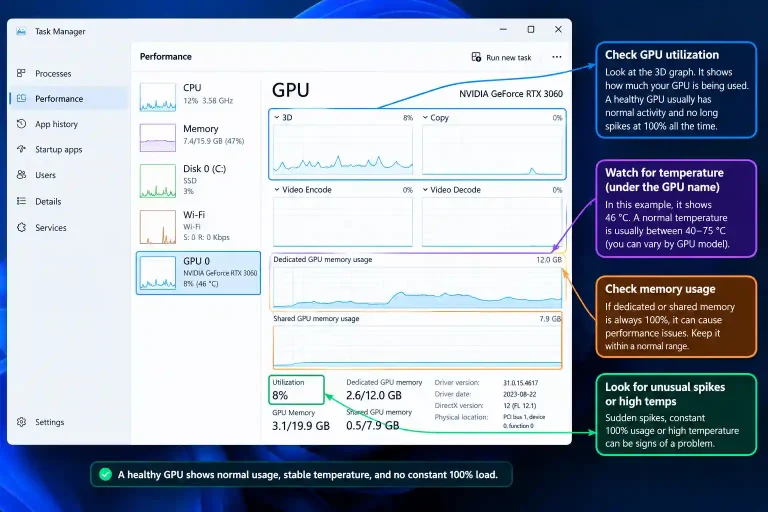
The fastest way to check what graphics card you have on Windows is to press Ctrl + Shift + Esc, open the Performance tab in Task Manager and click GPU. The name of your graphics card appears in the top-right corner, together with its dedicated memory (VRAM). It takes about ten seconds and needs no extra software.
Below are five ways to find your GPU on Windows 11 and 10, plus the steps for laptops with two graphics chips, Mac and Linux. Once you know your card, you can use it in our bottleneck calculator to see whether it is a good match for your CPU.
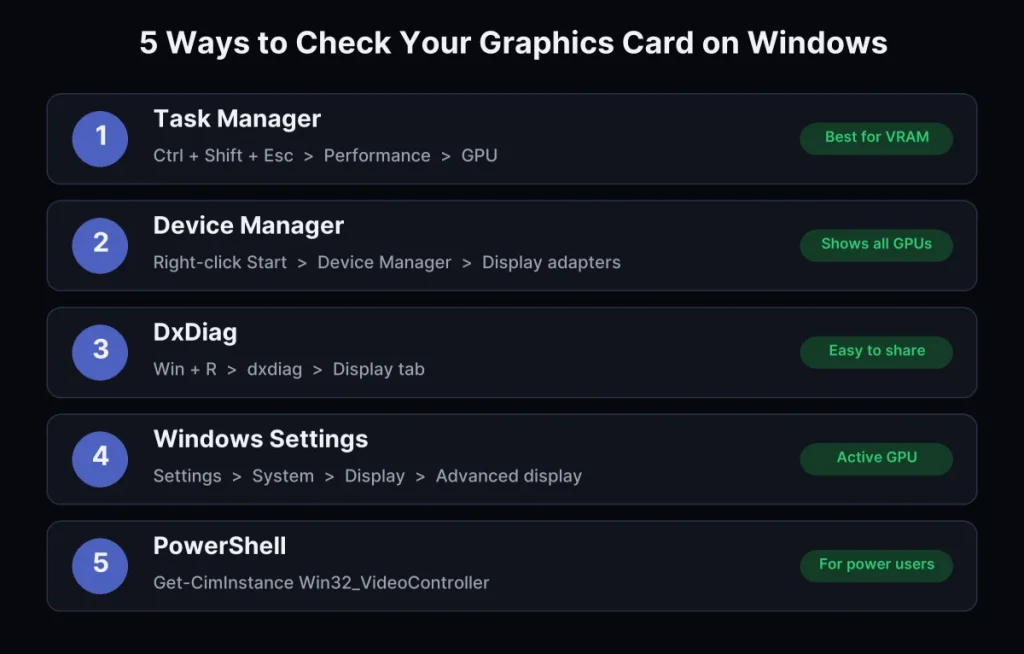
Table of ContentsShow or hide all 11 sectionsShowHide
Method 1: Task Manager (fastest)
- Press Ctrl + Shift + Esc to open Task Manager. If you only see a small window, click More details.
- Open the Performance tab (on Windows 11 it is the second icon in the left menu).
- Click GPU 0. If your PC has more than one graphics chip, you will also see GPU 1.
- Read the card name in the top-right corner. Below the graphs you will find Dedicated GPU memory (your VRAM), the driver version and the current GPU temperature.
Task Manager is the best place to check VRAM, because it shows the real amount of memory on the card.
Method 2: Device Manager
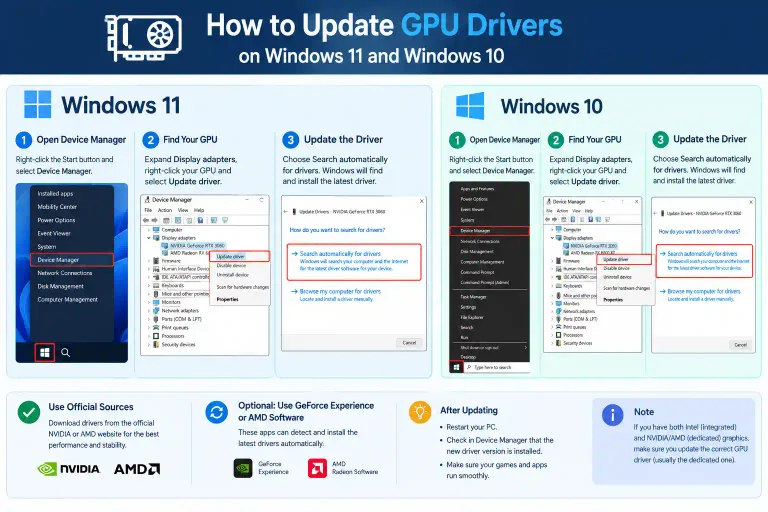
- Right-click the Start button and choose Device Manager.
- Expand Display adapters.
- Your graphics card is listed there. Double-click it to see the driver details.
If you only see Microsoft Basic Display Adapter, Windows does not have a proper driver for your card. Install the latest driver first by following our guide on how to update GPU drivers, then check again.
Method 3: DirectX Diagnostic Tool (DxDiag)
- Press Win + R, type
dxdiagand press Enter. - Open the Display tab. Laptops with two GPUs show a second Render tab as well.
- Under Device you will see the card name, the maker and the driver version.
DxDiag is useful when a support team or a forum asks for your system details, because you can click Save All Information and share the text file.
Method 4: Windows Settings
Open Settings > System > Display > Advanced display. Under Display information, Windows shows which graphics card is driving that monitor. On a desktop with the monitor plugged into the graphics card, this is your main GPU.
Method 5: PowerShell command
Right-click Start, open Terminal or PowerShell, and run:
Get-CimInstance Win32_VideoController | Select-Object Name, DriverVersionThis lists every graphics chip in the PC. The older wmic command is being removed from Windows 11, so PowerShell is the safer choice. Do not trust the memory value this command can show: it is often wrong for cards with more than 4 GB of VRAM, so use Task Manager for that.
Laptops: why you may see two graphics cards
Most gaming laptops have two GPUs: a small integrated chip inside the processor (such as Intel Iris Xe, Intel Arc Graphics or AMD Radeon Graphics) and a faster dedicated card (such as an NVIDIA GeForce RTX 4060 Laptop GPU). The laptop uses the integrated chip for everyday work to save battery and switches to the dedicated card for games.
That is why some tools only show the integrated chip. Use Task Manager or Device Manager instead, which list both. The dedicated card is the one that matters for gaming. To see how laptop cards compare, check our laptop GPU ranking.
How to check your graphics card on a Mac
Click the Apple menu and choose About This Mac. On Macs with Apple silicon (M1, M2, M3, M4 and newer), the graphics are part of the chip, so you will see the chip name. For the number of GPU cores, open More Info > System Report > Graphics/Displays. On older Intel Macs, the graphics card is listed on the same page.
How to check your graphics card on Linux
Open a terminal and run lspci | grep -i -E "vga|3d". This shows every graphics chip in the system. With an NVIDIA card and its driver installed, nvidia-smi also shows the model, VRAM, temperature and current load.
How to check your GPU without turning on the PC
If the PC will not start, look at the card itself. Most graphics cards have the model printed on the side or on a sticker at the back, and the original box or invoice will list it too. On a desktop, check where the monitor cable is plugged in: if it goes into the motherboard ports instead of the graphics card, you are using the integrated graphics, not your dedicated card.
You found your GPU: what next?
- Is it a good match for your CPU? Enter both in the bottleneck calculator.
- Can it run a game you want? Check the minimum and recommended specs in our game system requirements list, or estimate your frame rate with the FPS calculator.
- How fast is it? See where it ranks in our GPU tier list.
- Is it working properly? Run through our guide on how to check GPU health.
Sources: TechRadar – How to check what graphics card you have; Microsoft Support – Update drivers in Windows.
Frequently asked questions
How do I know if my graphics card is integrated or dedicated?
Integrated graphics have names like Intel UHD, Intel Iris Xe, Intel Arc Graphics or AMD Radeon Graphics without a model number, and Task Manager shows only shared memory for them. Dedicated cards have a model number, such as GeForce RTX 4060 or Radeon RX 7600, and show their own dedicated GPU memory.
How do I check how much VRAM my graphics card has?
Open Task Manager, go to Performance > GPU and read Dedicated GPU memory. That number is your VRAM.
Why does my PC show Microsoft Basic Display Adapter?
It means Windows is using a generic driver because the real driver is missing or broken. Download the driver from NVIDIA, AMD or Intel, or from your laptop maker, and the real card name will appear after a restart.
Can I check my graphics card without installing anything?
Yes. Task Manager, Device Manager, DxDiag, Windows Settings and PowerShell are all built into Windows, so none of the methods above need extra software.