How AI Video Generators Work: From Prompt to Video
AI video generators turn a text prompt, or an image, into a short video using a trained AI model. The model reads your words, builds a compressed version of the scene, removes noise step by step until a clear picture forms, keeps motion consistent across frames, and then decodes the result into a playable clip.
This guide explains how AI video generators work in five simple steps. The software does not search for footage that matches your words. It creates new frames from patterns it learned during training. Knowing the steps helps you write better prompts, fix common problems faster, and check if your PC can run these tools.

Table of ContentsShow or hide all 9 sections ShowHide
- How do AI video generators work?
- What is the difference between text-to-video and image-to-video?
- How do you write a better AI video prompt?
- What PC hardware do AI video generators need?
- How do you turn a generated clip into a finished video?
- What can AI video generators not do well yet?
- Conclusion
- Frequently asked questions
- Sources and further reading
How do AI video generators work?
They work in five main steps: read the prompt, build a compressed scene, remove noise step by step, keep movement consistent, and decode the data into frames. Most modern tools use some form of diffusion, though the details differ between models.
| Step | What happens | In simple words |
|---|---|---|
| 1. Read the prompt | A text encoder turns your words into numbers | The AI understands what you asked for |
| 2. Build a compressed scene | The model works in a small “latent” space | A light working copy of the video |
| 3. Remove noise | Diffusion cleans random noise into a scene | Static slowly becomes a picture |
| 4. Keep motion consistent | The model links frames across time | Same person, same room, every frame |
| 5. Decode to video | A decoder turns data into visible frames | A clip you can play and export |
Step 1: The AI reads your prompt
A text encoder converts your words into numbers called embeddings. These numbers capture what the words mean and how they connect.
Say you write “a motorcycle parked beside a mountain road.” That is a still scene. Add “the motorcycle speeds around a sharp corner while the camera follows,” and the model now also gets action and camera information.
Good prompts name the subject, action, place and camera move. Google DeepMind’s video prompt guide also suggests describing framing, motion, lighting and style. More words do not always help. Several unrelated actions in one short clip can confuse the model.
Step 2: The AI builds a compressed scene
Video has far more data than a single image. Working on every pixel at every step would need huge computing power. So many models work in a compressed space called latent space, which keeps the important visual information in a much smaller form.
NVIDIA researchers showed how image diffusion models can be extended with a time dimension to make video. You can read their paper, Align Your Latents. Think of latent space as a working draft made of numbers. It is not a storyboard and not a set of finished pictures.
Step 3: The AI removes noise step by step
In a diffusion model, generation starts from random noise. The model then cleans that noise in many small steps. At each step, your prompt guides what the picture should become.

The model does not draw a perfect boat and then slide it across the water. In many video models, how things look and how they move are generated together. That helps the frames match each other.
Not every system works this way. Some use autoregressive methods or mix different techniques. Hugging Face has a clear overview of video generation models if you want the technical parts, such as encoders, denoising networks and sampling.
Step 4: The AI keeps motion consistent
Making one good image is easier than making many frames that agree with each other. A person walking across a room should keep the same clothes, face and background in every frame. This is called temporal consistency.
Models learn this by looking at space and time together. OpenAI’s technical report on video generation models describes a diffusion transformer that works on small blocks of video called spacetime patches.
Problems still happen. A hand may change shape, an object may grow or shrink, or the camera may drift the wrong way. A shot of steam rising from a cup is easier than a busy street with people, cars and a moving camera.
Step 5: The data becomes a playable video
When the model finishes, a decoder turns the final data into visible frames. Three settings shape the result:
| Setting | What it controls | Common examples |
|---|---|---|
| Resolution | How sharp each frame is | 720p, 1080p |
| Frame rate | How smooth the motion looks | 24 or 30 frames per second |
| Aspect ratio | The shape of the picture | 16:9 wide, 9:16 vertical |
A higher resolution adds detail, but it does not fix bad motion. Some tools also create sound. Others give silent clips, so you add audio later.
How did the model learn movement?
During training, the model sees many videos, images and captions. It learns patterns, such as how waves rise and break, or how people walk. This is why it can make a believable ocean shot.
But learning how movement usually looks is not the same as calculating physics. A clip can look right and still break gravity or cause and effect. That is why simple actions with exact physical details can be harder than a cinematic wide shot.
Do all AI video tools work this way?
No. “AI video” is a broad label, and this guide covers generative models that create new frames. Other tools work differently:
- Generative tools make new footage from text or images. These use the five steps above.
- Avatar and presenter tools mostly combine a digital presenter, a synthetic voice and your script.
- Editing tools improve existing video, for example with auto captions, upscaling or background removal.
The five steps are also a simplified view. Each model has its own design, and companies do not always share every detail.
What is the difference between text-to-video and image-to-video?
Text-to-video starts from words only. Image-to-video starts from a picture plus words, so you get more control over how the first frame looks.

| Text-to-video | Image-to-video | |
|---|---|---|
| Starting point | Words only | A picture plus words |
| Control over the look | Lower | Higher |
| Best for | Ideas and new scenes | Products, characters and brand looks |
| Main risk | The look changes between runs | The model invents sides it cannot see |
For example, you can upload a photo of a watch on a table and ask for a slow camera move around it. If the move shows a side that is not in your photo, the model has to guess it. That can change logos, shapes or markings, so always check products and branded items closely.
How do you write a better AI video prompt?
Describe one subject doing one clear action in one place, with a simple camera move. Then add light and style. Keep each clip short.

| Weak prompt | Better prompt |
|---|---|
| A cool gaming PC video | Close-up of a black gaming PC with blue fans on a dark desk, slow camera push-in, soft blue light, cinematic |
| A man walks, drives and flies | A man walks along a rainy city street at night, camera follows from behind |
| Make it look good | Golden hour sunlight, shallow depth of field, calm mood |
Why does the first result often look wrong?
A prompt cannot list every detail. If you write “a man enters a restaurant,” the model must choose his look, the door, the light and the camera. Chance also plays a part, so two runs can look different. Some tools have a seed setting that makes runs more repeatable, but it does not guarantee the same result in every tool.
When a clip is wrong, change one thing at a time:
- Camera too fast? Ask for a slower move instead of rewriting the scene.
- Person keeps changing? Try a shorter shot, a simpler action or a reference image.
- Need a story? Make several short clips and join them in an editor.
What PC hardware do AI video generators need?
It depends on where the model runs. Cloud tools run on remote servers, so almost any device with a browser can use them. Running a model on your own PC needs a strong graphics card, and video memory (VRAM) is often the first limit.
| Option | What you need | Good for |
|---|---|---|
| Cloud tool in a browser | An internet connection and a modern device | Beginners, laptops and quick tests |
| Local, small model | A dedicated GPU with enough VRAM, free SSD space and enough system RAM | Privacy, no usage limits and learning |
| Local, large model | A high-VRAM GPU, good cooling and a strong power supply | Advanced users and longer projects |
VRAM needs differ a lot. For example, the small 1.3B version of the open Wan 2.1 text-to-video model lists about 8 GB of VRAM for 480p video, and larger models need much more. Read the model page before you download anything.
A quick check before you install a local model
- Find your GPU. Not sure which one you have? See how to check what graphics card you have.
- Compare VRAM with the model’s requirements. Our GPU tier list shows where your card stands.
- Test the pairing. Our bottleneck calculator estimates how well your CPU and GPU work together. It is an estimate, so also check software support. The CPU tier list can help if the CPU looks weak.
- Update drivers. Follow our guide to update GPU drivers.
- Watch temperatures. Long runs make parts hot. Check the safe GPU temperature range.
- Check power. A bigger GPU may need a bigger power supply. Use the PSU wattage calculator.
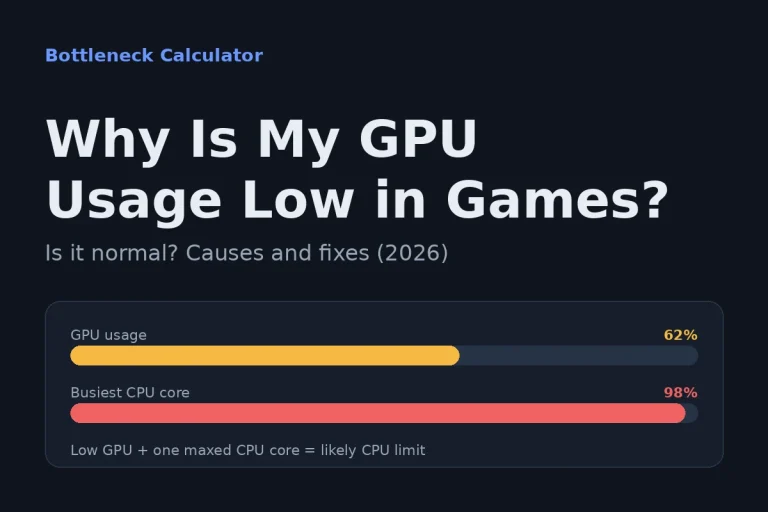
On a laptop, the laptop GPU ranking shows what to expect from your model. If GPU usage looks low during a job, the CPU, RAM or storage may be holding it back. If a card seems slow or unstable, run our GPU health check. If you plan to buy a new card, see the best graphics cards for 2026.
How do you turn a generated clip into a finished video?
Watch the whole clip, check the details, fix problems by regenerating or editing, then add sound and export in the right shape. A generated preview is rarely ready to publish as it is.
- Watch the full clip, not just the first frame.
- Check faces, hands, text and product details. They change most often.
- Choose the fix. A badly shaped object needs a new generation. An extra second at the start only needs trimming.
- Edit. Trim, adjust color and add captions or sound. Adobe explains this workflow in its guide to generating video from text prompts.
- Export in the right size, such as 16:9 for YouTube or 9:16 for vertical apps.
- Check rights and label it. Make sure you can legally use any music, logos or likenesses. If viewers could think the clip is real, say it is AI-made.
Example: a short clip for a gaming PC build
Imagine you want a short intro for a PC build video. You write: “Close-up of a black gaming PC with blue fans on a dark desk, slow camera push-in, soft blue light, cinematic.” It is one subject, one place and one camera move, so it is a good fit.
After generating, you check that the case keeps its shape and that the fan lights do not flicker. If the case looks different from your real one, use a photo of it as an image-to-video reference. Then trim the clip, add a title and music, and export it.
What can AI video generators not do well yet?
They can make realistic-looking footage, but realistic is not the same as accurate. Be careful with these areas:
- Readable text and exact logos. Letters and labels often warp.
- Hands and small details. They can change shape during movement.
- Long scenes. Keeping the same character across many shots often needs reference images and editing.
- Crowded scenes. Many people, cars and camera moves at once are harder to control.
- Plan limits. Some services cap clip length, resolution or the number of tries.
Do not treat generated footage as proof of a real event or a real product. The model can add details that look right but are not.
Conclusion
AI video generators turn prompts into video by reading your words, building a compressed scene, cleaning noise step by step, keeping frames consistent and decoding the result. Clear prompts, short clips and careful review give you the most control. If you plan to run these tools on your own PC, check your GPU, VRAM and cooling first, and try our bottleneck calculator for a quick CPU and GPU check.
Frequently asked questions
What is an AI video generator?
An AI video generator is a tool that creates a short video from a text prompt, an image, or both. It uses a trained AI model to generate new frames instead of finding existing footage.
Are AI-generated videos real footage?
No. The model creates the pictures from patterns it learned in training. The result can look real without matching a real place, product or event, so label AI footage clearly when viewers could be misled.
Can AI video generators work without an internet connection?
Some models can run offline after you download them to your PC. Most online tools need an internet connection because the work happens on remote servers.
How long does an AI video take to generate?
It depends on the model, clip length, resolution and hardware. Cloud tools may take from under a minute to several minutes. Local generation can take longer on a mid-range GPU.
How much VRAM do you need to run AI video models locally?
It depends on the model. Small, optimized models may run with about 8 GB of VRAM at low resolution, while larger models need much more. Always check the model page before you download.
Can a laptop without a dedicated GPU make AI videos?
Yes, if you use a cloud-based tool in your browser. Running models locally usually needs a supported dedicated GPU with enough VRAM.
Can you use AI-generated videos for commercial projects?
Sometimes. It depends on the tool’s terms, the images or music you upload, and local law. Read the license before you use a clip in an ad or a paid project.
Why do hands, faces and text often look wrong in AI videos?
These details are small, change with movement and must stay the same across many frames. Models can lose track of them, so short clips and simple scenes usually give better results.
Can a bottleneck calculator help with AI video work?
Yes, as a first check. It estimates how well your CPU and GPU work together. It cannot tell you VRAM needs or software support, so also read the model’s system requirements.