Monitor Bottleneck Guide 2026: Is Your Display Limiting Your FPS?
You dropped a small fortune on a current-gen GPU and CPU. Your frame counter is screaming past 200 FPS in Valorant or Call of Duty. But when you move your mouse, something feels wrong the game feels “sticky,” motion isn’t fluid, and your aim feels a beat behind.
You’re likely dealing with a monitor bottleneck.
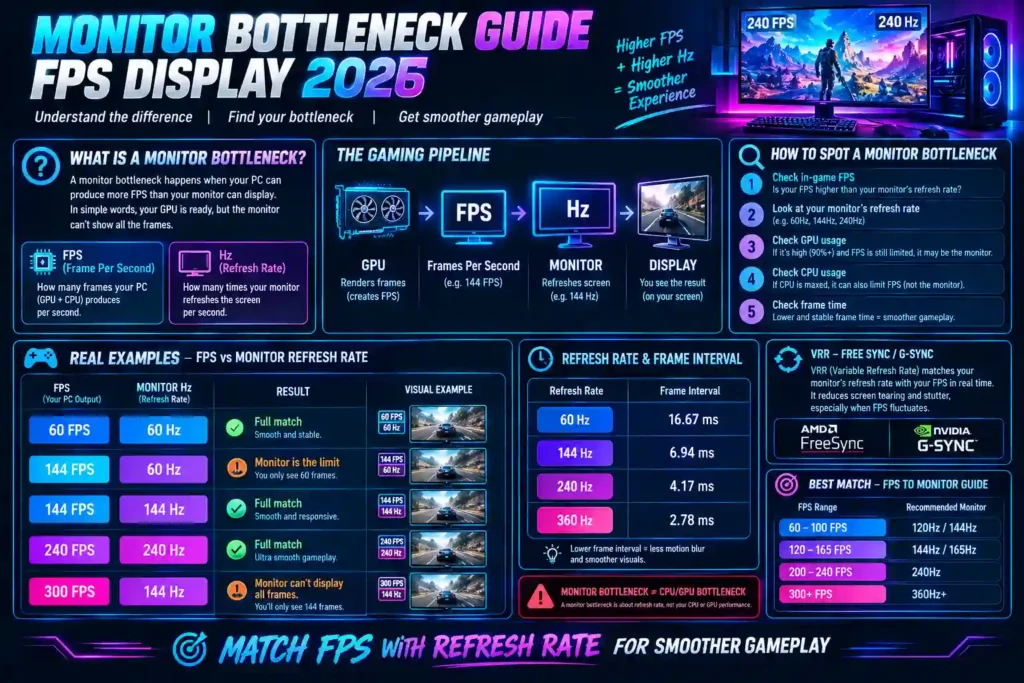
It’s the silent killer of PC performance. Most gamers obsess over matching their CPU to their GPU and completely ignore the last link in the chain: the screen itself. If your display can’t keep up with the frames your GPU produces or if input latency is high all that expensive hardware is partly wasted.
This guide breaks down exactly what a monitor bottleneck is, how to diagnose one on your own system in minutes, and how to fix it without necessarily buying a new screen.
Table of ContentsShow or hide all 7 sectionsShowHide
What Is a Monitor Bottleneck?
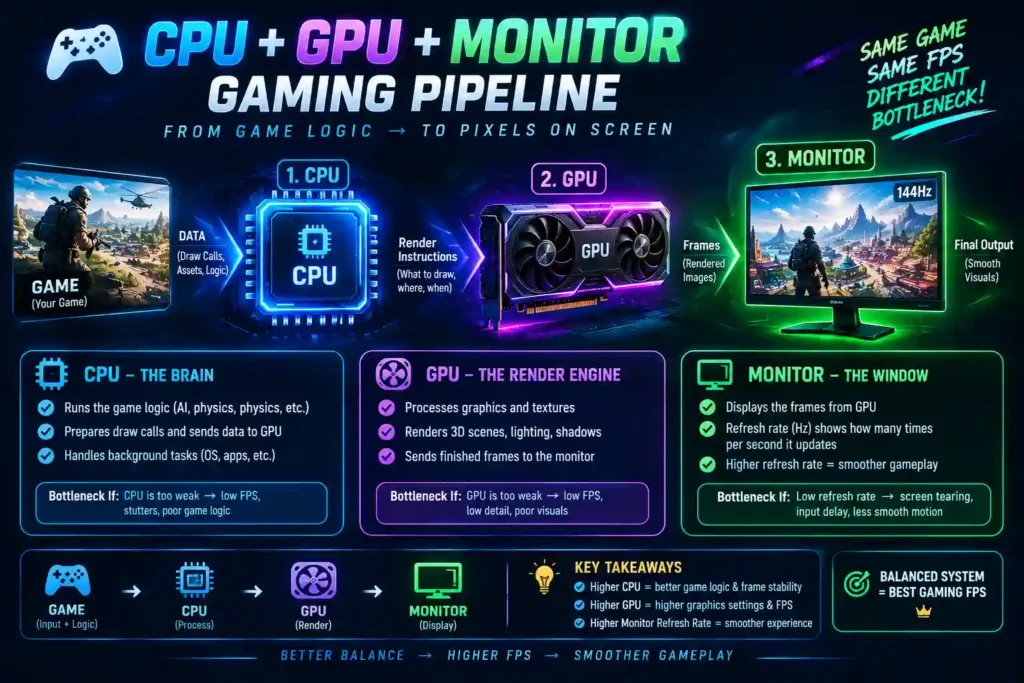
Think of it like a Ferrari running on tires rated for 60 mph. The engine’s power is irrelevant once the tires cap what actually reaches the road. Your gaming rig works the same way the CPU decides what to draw, the GPU renders it, and the monitor is the final canvas that shows it to your eyes. A monitor bottleneck happens when that last step can’t keep pace with everything ahead of it.
It usually shows up in two distinct ways:
- The Hz Cap: Your GPU renders 200 FPS, but a 60Hz panel can only physically display 60 images per second the rest are thrown away.
- The Latency Trap: Your system renders a frame in 4ms, but the monitor takes 20–30ms to process and display it, creating a real gap between your input and what you see.
The CPU–GPU–Monitor Pipeline
Picture the pipeline as an assembly line: the CPU is the manager deciding what to draw, the GPU is the artist rendering the frame, and the monitor is the canvas displaying the result. A bottleneck at the very end of that line wastes everything produced upstream frames get rendered that you’ll never actually see, or see later than you should.
Refresh Rate vs. Response Time vs. Input Lag
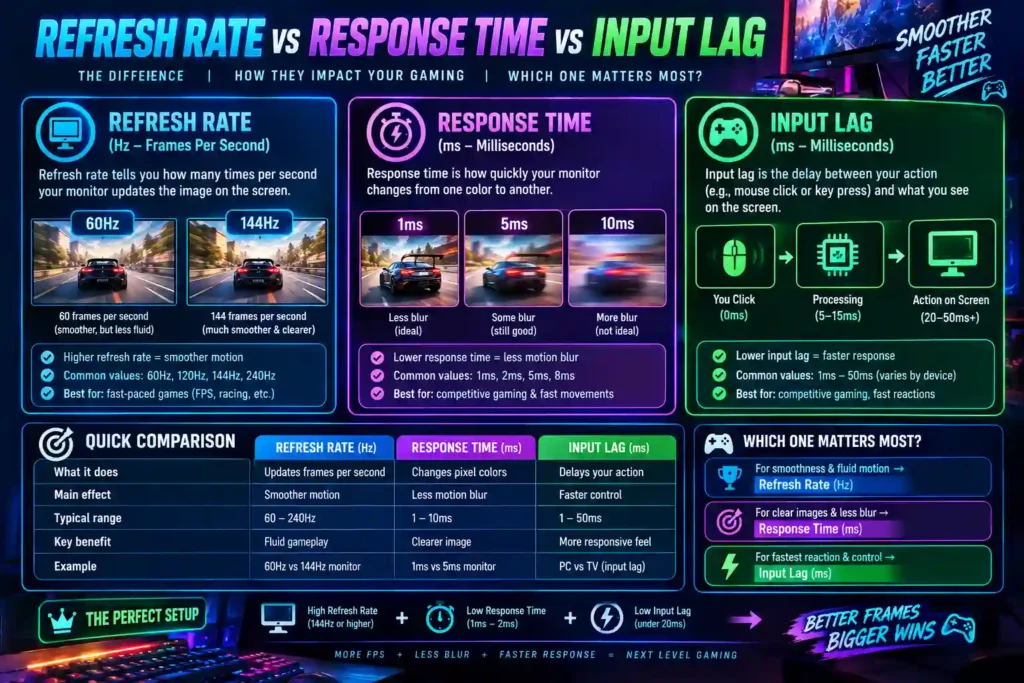
These three terms get mixed up constantly, so it’s worth separating them clearly:
- Refresh Rate (Hz): How many times per second the panel redraws the image. 144Hz is the current entry-level standard for gaming; 165–240Hz is common on competitive-focused panels.
- Response Time (GtG): How fast a pixel transitions from one shade to another. Slow response times cause visible ghosting a smeared trail behind fast-moving objects. OLED panels lead here, with response times low enough to be functionally instant for gaming purposes.
- Input Lag (Latency): The delay between a physical action (mouse click, key press) and that action appearing on screen. This is the metric that actually affects competitive performance the most.
As a common rule of thumb, input lag under roughly 10ms is a good value for PC gaming at high refresh rates (RTINGS explains how it measures this in its monitor input lag test), with differences becoming clearly noticeable from around 15ms upward. Lag creeping past 40–60ms becomes noticeable even to casual players, and past 100ms it starts to feel like input is delayed by a beat.
Signs Your Monitor Is the Weakest Link
You don’t need lab equipment to spot a monitor bottleneck the symptoms are usually obvious once you know what to look for.
Screen Tearing
Tearing happens when your GPU delivers a new frame mid-draw, so the monitor displays parts of two different frames at once the image looks horizontally sliced. Traditional V-Sync fixes tearing but adds noticeable input lag, which is why competitive players avoid it in favor of adaptive sync technology (covered below).
The “High FPS, Low Smoothness” Paradox
If your counter shows 144 FPS but the game still feels choppy, check your actual display settings. A common and easy-to-miss mistake: your monitor supports 144Hz, but Windows is still set to 60Hz. In that scenario, your GPU renders far more frames than the screen ever shows, creating uneven pacing and a jittery feel even though the FPS counter looks fine.
How to Check for a Monitor Bottleneck (3 Methods)
Method 1: The Motion Clarity Test
A quick way to spot ghosting is a moving-object motion test, such as Blurbusters’ UFO Test, a widely used free tool built specifically to expose ghosting and motion blur. If a fast-moving test object smears into a trail, your panel’s response time is limiting visual clarity. A crisp, clean object during motion means your response time isn’t the problem.
Method 2: The Full-Pipeline Calculation Method
Most bottleneck calculators only compare CPU and GPU a major blind spot, since a perfectly balanced CPU/GPU pairing is still wasted if the monitor can’t display the output. A proper check needs your CPU, GPU, and monitor specs together.
For example, pairing a high-end current-gen GPU with a 1080p 60Hz monitor can waste well over half of the GPU’s real output frames rendered that the panel is physically incapable of ever showing.
→ Run your exact CPU, GPU, and monitor specs through our free Bottleneck Calculator to see exactly how much performance your display might be leaving on the table.
Method 3: Reading Frame-Time (Not Just FPS) Metrics
Tools like MSI Afterburner or your GPU vendor’s overlay can show frame time, not just FPS. If your frame-time graph is flat and low (meaning your PC itself is performing consistently) but the game still feels laggy, the delay isn’t happening inside the PC it’s happening on the way from the GPU to your eyes, which points straight at the monitor.
How to Fix a Monitor Bottleneck
Before spending money on a new screen, there’s a good chance you can fix most of this bottleneck for free.
Free Software and Settings Fixes
Start inside your monitor’s on-screen menu and enable Game Mode many monitors and TVs run post-processing that silently adds tens of milliseconds of lag, and Game Mode strips that away.
Next, enable Variable Refresh Rate G-SYNC on NVIDIA systems, FreeSync on AMD systems. VRR syncs your monitor’s refresh rate to your GPU’s actual frame rate, eliminating tearing without the heavy input-lag penalty of traditional V-Sync. For competitive shooters, most players leave V-Sync off entirely and rely on VRR instead.
Finally, enable your GPU vendor’s low-latency feature inside supported titles. NVIDIA Reflex has shown system latency reductions of up to 58% in Escape from Tarkov and up to 51% in Rust, according to NVIDIA’s own published results, with more typical reductions in the 30–40% range across supported titles. AMD’s equivalent, Anti-Lag 2, works similarly on Radeon GPUs in titles like CS2. Both features reduce the render queue sitting between your input and the frame actually reaching the screen, and both are free, one-click settings supported in most major competitive titles today.
How Much Does Each Fix Actually Save You?
It helps to see these fixes side by side rather than as vague advice:
| Fix | Typical Latency Impact | Cost |
| Enabling Game Mode | Removes 10–50ms of post-processing lag | Free |
| VRR (G-SYNC/FreeSync) | Eliminates tearing without V-Sync’s lag penalty | Free (if supported) |
| NVIDIA Reflex / AMD Anti-Lag | ~30–58% system latency reduction (title-dependent) | Free |
| Correct high-bandwidth cable | Unlocks full advertised refresh rate | $10–20 |
| New high-refresh or OLED panel | Removes hardware-level Hz/response-time caps entirely | $200+ |
Notice that the first three fixes above cost nothing and, combined, often close most of the gap before you ever need to buy new hardware.
Check Your Cable It Might Be the Real Bottleneck
Bandwidth limits are an easy thing to overlook. If Windows won’t let you select your monitor’s full advertised refresh rate, the cable is very often the culprit:
| Cable Standard | Bandwidth | Practical Limit |
| HDMI 2.0 | 18 Gbps | Struggles past 4K 60Hz |
| DisplayPort 1.4 | 32.4 Gbps | Solid for 1440p high refresh |
| HDMI 2.1 | 48 Gbps | Needed for 4K 144Hz+ |
| DisplayPort 2.1 | Up to 80 Gbps | Headroom for 4K 240Hz+ and beyond |
If you bought a 144Hz+ monitor and Windows caps you at 60Hz, you’re most likely using the basic cable that shipped in the box. Swapping to a certified DisplayPort or HDMI 2.1 cable is often a five-minute, low-cost fix.
When It’s Actually Time to Upgrade
If you’ve applied every fix above and a bottleneck calculator still shows a large share of your GPU output going unused, upgrading the panel itself is the next step.
- Competitive players: Prioritize refresh rate. 1080p or 1440p panels at 240Hz+ on a fast IPS or TN panel give the clearest edge in esports titles.
- Visual/immersion-focused players: Prioritize OLED. Near-instant pixel response virtually eliminates motion blur, outperforming even excellent IPS panels for fast motion.
Special Scenarios
Does a Second Monitor Cause Lag?
There’s a long-running myth that a second display tanks performance. In practice, this mostly depends on how Windows handles mixed refresh rates. Older Windows builds sometimes struggled syncing a 144Hz primary display with a 60Hz secondary one, causing stutter. This has been largely resolved in current Windows versions if you still notice stutter with dual monitors, try matching both displays to a similar refresh rate as a quick fix.
Laptop Gaming with an External Monitor
On many gaming laptops, the dedicated GPU has to route video through the weaker integrated graphics chip to reach the built-in screen, adding latency sometimes called an “Optimus bottleneck.” External monitor ports on most laptops connect directly to the dedicated GPU, bypassing that extra hop entirely. Laptops with a hardware MUX switch avoid this issue natively, but on older machines, simply plugging into an external display can recover meaningful performance that was otherwise lost internally.
Conclusion Don’t Let Your Display Hold Back Your Rig
Your monitor is the lens your entire PC’s performance is viewed through. A monitor bottleneck isn’t just wasted money on unused GPU power in competitive games, it’s the difference between winning and losing fights you should have won.
Quick takeaways:
- Check your cable first a basic HDMI 2.0 cable can silently cap a high-refresh monitor.
- Enable VRR (G-SYNC/FreeSync) and your GPU’s low-latency mode before spending on new hardware.
- Confirm Windows is actually set to your monitor’s full refresh rate this is one of the most common, easiest-to-miss issues.
- Competitive players: chase refresh rate and low input lag. Visual players: chase OLED response time.
Still not sure if your screen is the bottleneck? Run your exact setup through our free Bottleneck Calculator and find out exactly how much performance a hidden monitor bottleneck might be costing you.
Frequently Asked Questions
What input lag counts as a monitor bottleneck?
For casual play, under 40ms is generally fine. For competitive shooters, aim for 10ms or lower most elite gaming monitors today land in the single digits with Game Mode enabled.
Does 4K resolution cause more monitor bottlenecking than 1080p?
Usually the opposite. 4K puts heavy load on the GPU, which tends to make the GPU the limiting factor generally the preferred outcome. At 1080p, a strong GPU can render frames faster than many monitors can display them, making a monitor bottleneck more likely.
Can a 60Hz monitor limit a mid-range or high-end GPU?
Yes, significantly. A capable modern GPU can easily exceed 100+ FPS in many 1080p titles. On a 60Hz monitor, you simply never see close to half of those rendered frames a textbook refresh-rate bottleneck.
How do I know if my cable is causing the bottleneck?
Check Windows Display Settings. If your monitor’s advertised max refresh rate isn’t selectable, the cable is a likely cause. Standard HDMI 2.0 cables often can’t carry high refresh rates at high resolutions try a certified HDMI 2.1 or DisplayPort cable instead.
Should I cap my FPS to fix a monitor bottleneck?
For the smoothest image with no tearing, capping FPS at your refresh rate (e.g., 144 FPS on a 144Hz panel) helps. For the absolute lowest input lag, many competitive players leave FPS uncapped and rely on VRR and a low-latency mode instead.
Is VRR (G-SYNC/FreeSync) enough, or do I still need V-Sync?
VRR alone eliminates tearing in most situations without the added lag of traditional V-Sync. Most competitive players leave V-Sync off entirely and rely on VRR plus a frame-rate cap slightly under their refresh rate for the cleanest result.
Does a second monitor hurt gaming performance?
Rarely on current Windows versions. It was a more common issue on older systems mixing very different refresh rates matching both displays to similar refresh rates resolves most remaining cases.
How much does NVIDIA Reflex or AMD Anti-Lag actually help?
Per NVIDIA’s own published benchmarks, Reflex has cut system latency by up to 58% in Escape from Tarkov and up to 51% in Rust, with more typical gains in the 30–40% range across supported titles. AMD’s Anti-Lag 2 targets similar reductions on Radeon GPUs. Both are free, one-click settings worth enabling before anything else.