GPU Bottleneck: What It Means, Is It Bad and How to Fix It (2026)
A GPU bottleneck means your graphics card is the part limiting your FPS: it runs at 95% to 100% usage while the CPU still has room to spare. In most cases this is normal and even ideal for gaming, because you are using the full power of the most expensive part. It only becomes a problem when your FPS is too low or the game feels laggy.
This guide explains when a GPU bottleneck is fine, how to check it, and how to get more FPS without wasting money. To see how your own CPU and graphics card match, use our free bottleneck calculator.
Last updated: November 2026
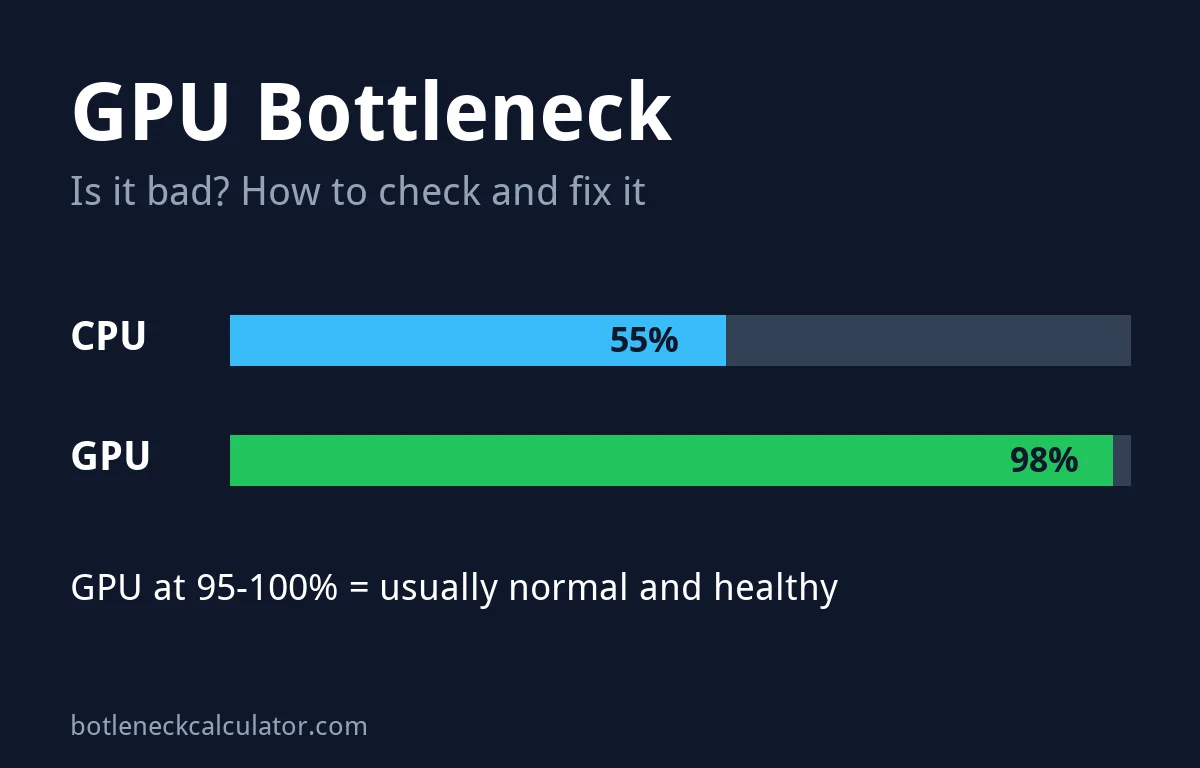
Table of ContentsShow or hide all 11 sectionsShowHide
GPU bottleneck: key facts
- What it is: the graphics card is the slowest part of the chain, so it sets your maximum FPS.
- Main sign: GPU usage at 95% to 100% while you play.
- Where it shows most: 1440p, 4K, ultra settings and ray tracing.
- Is it bad? Usually no. It is the normal state of a balanced gaming PC.
- Can 100% GPU usage damage the card? No, as long as temperatures are normal.
- Fastest free fix: turn on upscaling (DLSS, FSR or XeSS) or lower the heaviest settings.
What is a GPU bottleneck?
The CPU prepares each frame and sends drawing instructions, and the GPU draws it. Microsoft’s DirectX team describes being GPU-bound as the CPU producing instructions faster than the GPU can process them, so the CPU sometimes waits for the graphics card. Your FPS is then set by how fast the GPU can draw.
This is the opposite of a CPU bottleneck, where the graphics card waits for the processor.
Is a GPU bottleneck good or bad?
For gaming, a GPU bottleneck is usually what you want. The graphics card is the part that decides FPS and image quality in most games, so it should be the one working hardest. It becomes a problem only when:
- your FPS is below your target or your monitor’s refresh rate,
- the card runs out of video memory (VRAM) and the game stutters or loses texture detail, or
- you play competitive games and feel extra input lag.
GPU bottleneck symptoms
- GPU usage at 95% to 100% in game, while CPU threads are not maxed out.
- FPS rises when you lower settings or resolution. This is the clearest test.
- Upscaling gives a big boost. Moving DLSS or FSR from Quality to Performance raises FPS clearly.
- Ray tracing cuts FPS hard. Turning it on lowers frame rate much more than other settings.
- More input lag at full load. When the GPU is maxed out, frames can wait in a queue, which adds delay.
How to check for a GPU bottleneck
- Open an overlay such as MSI Afterburner and show GPU usage, GPU memory used, CPU usage per thread and FPS.
- Turn off any frame cap and V-Sync for the test.
- Play a demanding scene for a few minutes, not a menu.
- If GPU usage stays at 95% to 100%, you are GPU-bound. PCWorld uses the same 95% line.
- Lower the resolution or one heavy setting. If FPS goes up clearly, the GPU was the limit.
| What you see | What it means | What to do |
|---|---|---|
| GPU 95% to 100%, FPS is good | Healthy GPU-bound PC | Nothing. Enjoy the game. |
| GPU 95% to 100%, FPS too low | GPU bottleneck | Lower settings or use upscaling |
| GPU memory near full, stutter or blurry textures | VRAM limit | Lower texture quality and ray tracing |
| GPU below 95%, FPS does not change with settings | CPU bottleneck | See the CPU bottleneck guide |
Why a GPU bottleneck adds input lag
When the graphics card is fully loaded, the CPU can get ahead and frames wait in a queue before they are drawn. Each frame then shows input that is a little older. Tools such as NVIDIA Reflex and AMD Anti-Lag shorten that queue.
TechSpot’s tests show how big the effect can be. In Fortnite at 4K on an RTX 3090, total latency was about 104 ms without Reflex and under 50 ms with it. In CPU-bound tests at low settings, Reflex made almost no difference. So if your GPU is maxed out in a competitive game, turn Reflex or Anti-Lag on.
VRAM: a special kind of GPU bottleneck
Sometimes the GPU chip is fast enough, but its video memory is full. Then you see stutter, blurry textures or sudden FPS drops, even if average FPS looks fine. This is most common with 8 GB cards at high settings, 1440p and 4K. Lower texture quality first, and read how much VRAM you need for gaming.
Does resolution change a GPU bottleneck?
Yes. Higher resolution means more pixels for the GPU to draw, while the CPU’s work stays about the same. That is why 4K is almost always GPU-bound. Tom’s Hardware found that at 4K with DLSS Quality, four very different CPUs were within about 1.5 FPS of each other with an RTX 4080 Super, because the graphics card was the limit.
Our calculator shows the same pattern. A Ryzen 5 3600 with an RTX 5070 is CPU-limited at 1080p and 1440p, but balanced at 4K, where the GPU is fully used.
How to fix a GPU bottleneck
If your FPS is too low and the GPU is at 100%, try these in order:
- Turn on upscaling. DLSS, FSR or XeSS on Quality or Balanced gives the biggest FPS gain for the smallest loss in image quality.
- Lower the heaviest settings first: ray tracing, shadows, volumetric fog and clouds, and ambient occlusion.
- Lower texture quality if GPU memory is close to full.
- Drop the resolution one step, for example from 1440p to 1080p, if upscaling is not available.
- Turn on NVIDIA Reflex or AMD Anti-Lag in competitive games to cut input lag.
- Update your graphics driver. See how to update GPU drivers.
- Check GPU temperature. A card that runs too hot slows down. See the safe GPU temperature range.
- Upgrade the graphics card if none of this is enough. Check our best GPU for your CPU pages first, so the new card does not move the bottleneck to your processor.
GPU bottleneck vs CPU bottleneck
| GPU bottleneck | CPU bottleneck | |
|---|---|---|
| GPU usage | 95% to 100% | Below about 95% |
| Most common at | 1440p, 4K, ray tracing | 1080p, high frame rates |
| Lowering graphics settings | Clear FPS gain | Little or no FPS gain |
| Is it normal? | Yes, usually ideal | Fine if FPS is high enough |
| Upgrade that helps | Faster graphics card | Faster processor |
Planning an upgrade? Test the exact pair in our PC bottleneck calculator for results at 1080p, 1440p and 4K, or browse ready-made CPU and GPU pair results.
Sources: Microsoft DirectX Developer Blog – CPU and GPU boundedness; PCWorld – PC bottlenecks explained; TechSpot – NVIDIA Reflex tested; Tom’s Hardware – CPU scaling with DLSS.
Frequently asked questions
Is 100% GPU usage bad?
No. In games, 95% to 100% GPU usage means the card is fully used, which is what you want. Only worry if temperatures are too high or FPS is too low.
Should the GPU be the bottleneck?
For most gaming PCs, yes. A slight GPU bottleneck means the processor is fast enough and you get the most from your graphics card.
Can a GPU bottleneck damage my graphics card?
No. Graphics cards are built to run at full load. Keep the card clean and check that temperatures stay in the normal range.
How do I fix a GPU bottleneck without buying a new card?
Turn on DLSS, FSR or XeSS, lower ray tracing and shadow settings, reduce texture quality if VRAM is full, and update your graphics driver.
Does a GPU bottleneck cause input lag?
It can add some, because frames wait in a queue when the GPU is maxed out. NVIDIA Reflex or AMD Anti-Lag reduces this in supported games.
Is a GPU bottleneck at 4K normal?
Yes. At 4K the graphics card has the most work, so almost every PC is GPU-bound there, even with a mid-range processor.