Resizable BAR: What It Is, How to Enable It and Whether It Boosts FPS (2026)
Resizable BAR (ReBAR) is a free setting that lets your CPU use the whole video memory of your graphics card in one go, instead of in small chunks. On a compatible PC it can add a few extra frames in some games, and on Intel Arc cards it matters a lot more. It is also one of the most common settings people forget to turn on after building or upgrading a PC.
This guide explains what Resizable BAR does, what you need for it, how to enable it step by step, and how to check that it is really working. If you want to see how your CPU and GPU pair up before you change any settings, run your parts through the bottleneck calculator first.
Table of ContentsShow or hide all 7 sectionsShowHide
What is Resizable BAR?
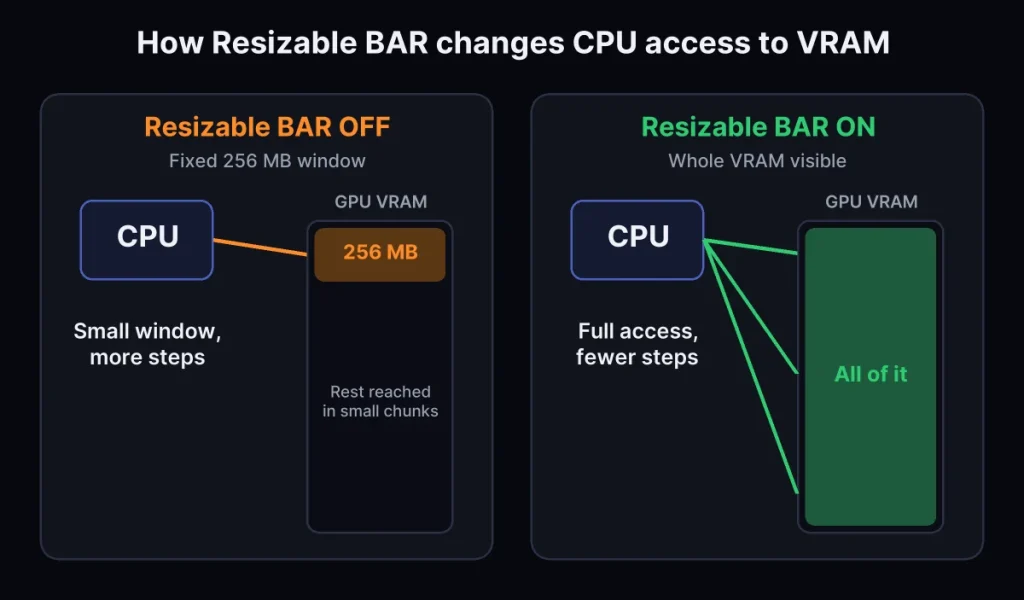
Normally the CPU can only talk to the GPU’s video memory (VRAM) through a small window of about 256 MB. When a game needs to send lots of textures and assets, the CPU has to do it in many small steps. Resizable BAR removes that limit, so the CPU can access the full VRAM at once.
AMD introduced this idea for its Radeon RX 6000 cards under the name Smart Access Memory. NVIDIA and Intel later added their own support, and you will often see all of these called ReBAR or Smart Access Memory in BIOS menus.
Does it really improve FPS?
Sometimes, but do not expect miracles. The gain depends on the game and on your hardware. Many games show little or no change, some gain a few percent, and a small number of titles show a bigger jump. To get a feel for what your hardware can do, try the FPS calculator. Intel Arc graphics cards are the exception: they are designed around Resizable BAR and can run noticeably worse without it.
The good news is that it is free and does not cause the kind of stability problems you can get from overclocking. If you are still unsure where your frame rate is being held back, read our guide on why a high-end PC can still stutter.
What you need before you start
- A supported graphics card. Most recent NVIDIA GeForce, AMD Radeon and Intel Arc cards support it. Older cards may need a VBIOS or driver update, so check the card maker’s support page.
- A supported CPU and motherboard. Modern Ryzen and Intel Core systems generally support it, but older boards often need a BIOS update first.
- Windows installed in UEFI mode on a GPT disk. If Windows is installed in legacy (MBR) mode, the option will not work.
- An up-to-date BIOS and GPU driver. Update both before you change settings. Our guide on how to update GPU drivers walks you through it.
How to enable Resizable BAR (step by step)
- Restart your PC and open the BIOS/UEFI setup, usually by pressing Delete or F2 while it starts.
- Find Above 4G Decoding and set it to Enabled. On some boards this must be turned on before the Resizable BAR option appears.
- Find Resizable BAR (sometimes called Re-Size BAR Support or Smart Access Memory) and set it to Enabled. If the only choice is Auto, Auto is fine on a compatible system.
- In the Boot section, disable CSM (Compatibility Support Module) so the PC boots in pure UEFI mode.
- Save your changes and exit. Windows will restart.
Menu names and locations differ between motherboard brands, so look under sections like Advanced, PCI Subsystem Settings, or Boot. Your motherboard manual shows the exact path.
How to check that it is working
- NVIDIA: open the NVIDIA Control Panel, click System Information, and look for Resizable BAR. It should say Yes.
- Any GPU: install the free GPU-Z tool and look at the Resizable BAR box in the lower right of the main window. It should say Enabled.
- AMD: the Radeon software shows Smart Access Memory under the Performance tab.
If the option does not appear or stays off
- Update the BIOS. Many older motherboards only added Resizable BAR in a later BIOS release.
- Check the disk type. Press Win + R, type
msinfo32and check that BIOS Mode says UEFI. If it says Legacy, your Windows disk probably uses MBR. - Convert MBR to GPT. Windows includes the
mbr2gpttool for this. Back up your files first, because a clean install on a GPT disk is the safest route. - Update the GPU VBIOS and driver from the card maker if your card is a few years old.
- Windows will not start? Re-enable CSM in the BIOS to get back in, then check your disk type.
Should you turn it on?
Yes, in almost every case. It is free, it is easy to undo, and on a compatible PC it can only help or do nothing in most games. Turn it on, check that it shows as enabled, and then test the games you play while you monitor your PC performance. If one game runs worse, you can switch it off in the BIOS again.
Resizable BAR is only one small part of overall performance. If your games are limited by an old CPU or a weak GPU, a setting will not fix that. For more free tweaks, read how to fix a PC bottleneck without upgrading, and check where your card sits in our GPU tier list. To find out which part is holding you back, use the CPU and GPU bottleneck calculator, and see our graphics card buying guide if it is time to upgrade.
Sources: PCGamesN – How to enable resizable BAR; Custom PC – How to enable resizable BAR.