Hardware Accelerated GPU Scheduling: Should You Turn It ON or OFF in 2026?
Hardware Accelerated GPU Scheduling, often shortened to HAGS, is one of the most debated settings in Windows graphics options. Some gamers swear it makes games smoother, while others say it changes nothing. Both groups are partly right.
In this guide, you will learn what Hardware Accelerated GPU Scheduling does, which GPUs support it, why it matters for DLSS Frame Generation, its real benefits and drawbacks, and how to decide whether it is right for your PC.
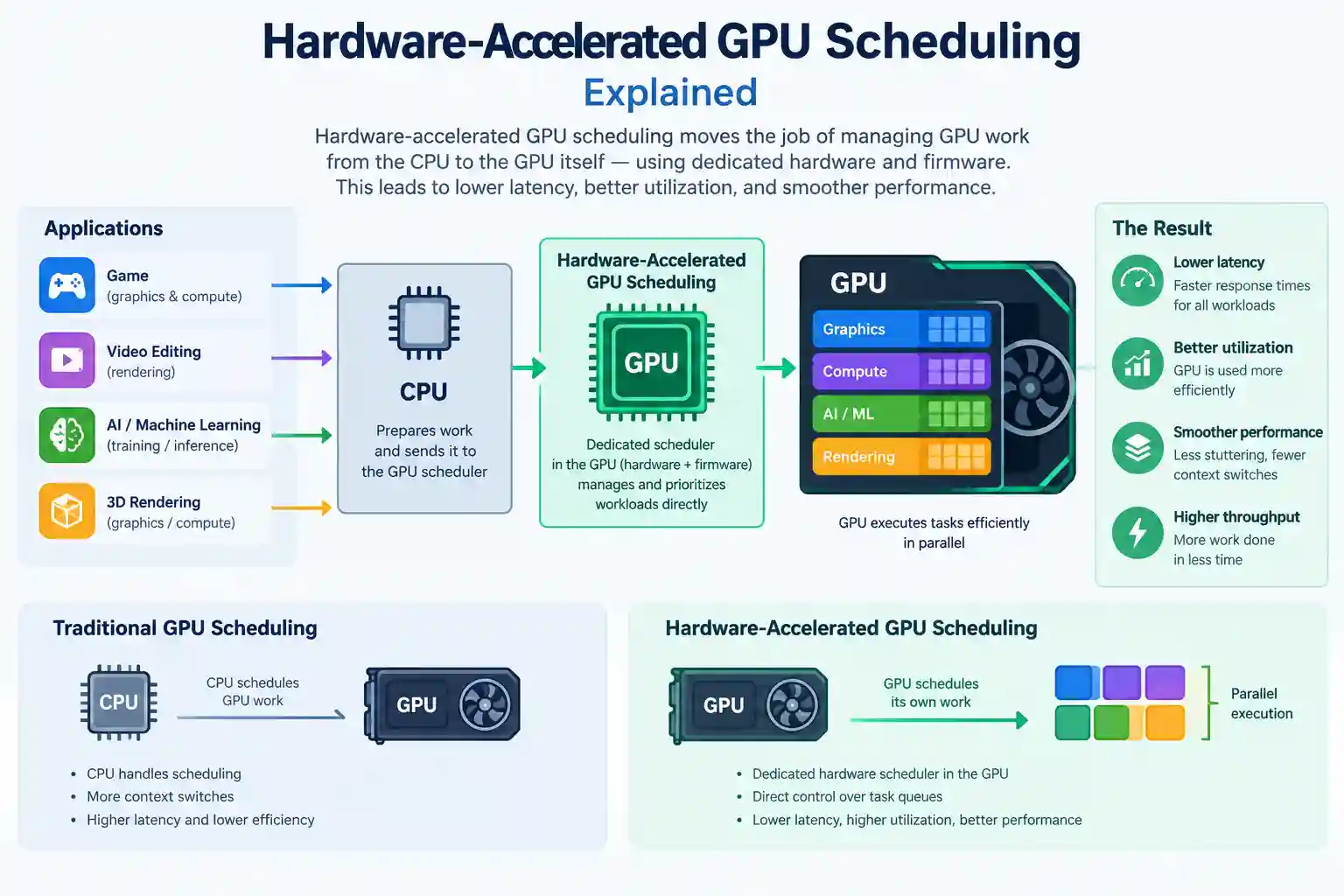
Table of ContentsShow or hide all 14 sectionsShowHide
What Is Hardware Accelerated GPU Scheduling?
Hardware Accelerated GPU Scheduling is a Windows feature that lets a dedicated scheduling processor on your graphics card handle more of the GPU’s work queue, instead of relying only on the CPU. Microsoft introduced it with the Windows 10 May 2020 Update (version 2004), and it continues in Windows 11.
Windows has always needed a scheduler to decide which application gets GPU time and in what order. Traditionally, a high-priority thread on the CPU prepared, batched, and submitted that work to the GPU. With Hardware Accelerated GPU Scheduling enabled, part of that job moves to the GPU hardware. This can reduce CPU overhead and, in some setups, improve frame-time consistency.
Microsoft described the change as a foundation-level modernization of the graphics stack and said that for most users the transition would be transparent. That single point explains why you should not expect a dramatic FPS jump.
How Does HAGS Work?
Think of the CPU as a manager handing out tasks and the GPU as a worker. Without HAGS, the manager sorts every task first. With HAGS, the worker sorts part of its own task list and the manager gets more time for game logic, physics, and background apps.
Quick Summary
- Feature name: Hardware Accelerated GPU Scheduling (HAGS)
- Introduced in: Windows 10 version 2004 (May 2020)
- Main goal: Reduce CPU overhead and improve frame pacing
- Best for: Modern GPUs with up-to-date drivers
- Also matters for: NVIDIA DLSS Frame Generation
HAGS Myths: What Hardware Accelerated GPU Scheduling Does Not Do
Many guides oversell this setting, so let’s clear up the confusion:
- It does not add VRAM. It changes how work is handed to the GPU, not how much memory the card has.
- It does not make your GPU faster. The GPU has the same compute power whether HAGS is ON or OFF.
- Turning it OFF does not stop rendering. Your GPU still runs games normally.
- It does not fix a real bottleneck. If your CPU is much weaker than your GPU, a scheduling toggle cannot solve that. Check your pairing with a CPU and GPU bottleneck calculator.
Which GPUs and Windows Versions Support Hardware Accelerated GPU Scheduling?
Support is much wider than only high-end cards. Hardware Accelerated GPU Scheduling needs three things:
- Windows 10 version 2004 or newer, or Windows 11
- A driver that supports WDDM 2.7 or higher
- A compatible GPU
When the feature launched, it appeared in Graphics Settings only after installing supported drivers (NVIDIA 451.48 and AMD 20.5.1 Beta at the time), and it was off by default.
NVIDIA GPUs
Support began with GeForce GTX 10-series (Pascal) and Turing cards and now covers RTX 30, 40, and 50 series GPUs with current drivers.
AMD GPUs
AMD launched support on Radeon RX 5600 and 5700 series (RDNA) and it continues on RX 6000, RX 7000, and newer cards.
Intel GPUs
Intel Arc graphics also support the feature. Arc B-Series cards need Windows 11 version 22H2 or later.
Hardware Accelerated GPU Scheduling and DLSS Frame Generation
This is the biggest practical reason to care about HAGS today. NVIDIA DLSS Frame Generation on RTX 40 and 50 series GPUs requires Hardware Accelerated GPU Scheduling to be enabled in Windows. If HAGS is OFF, the frame generation option can be greyed out or hidden in the game, even on a supported card.
This applies to DLSS 3 and DLSS 4 frame generation. DLSS Frame Generation also needs DirectX 12 and a supported game, so HAGS alone is not enough. If you own an RTX 40 or 50 series card and want frame generation, keep HAGS ON.
Not every NVIDIA feature carries the same dependency. Do not assume other features, such as driver-level motion smoothing, need HAGS unless NVIDIA’s documentation says so.
Benefits of Hardware Accelerated GPU Scheduling
Lower CPU Overhead
Moving scheduling work to the GPU frees CPU time for game logic, physics, and background apps. This helps most in CPU-limited games that submit a very large number of draw calls.
Smoother Frame Pacing
Many users notice steadier frame times, which shows up more in 1% low FPS than in average FPS. The improvement is usually small but can feel noticeable in fast games.
Access to Frame Generation
HAGS unlocks DLSS Frame Generation on supported RTX cards, which can raise displayed FPS significantly in supported games.
Better Multitasking
Gaming while streaming, recording, or running browser tabs can feel more stable when the CPU has less scheduling work.
Future-Ready Setup
Windows is building on this foundation, so a HAGS-compatible system is better prepared for upcoming graphics features.
Drawbacks of Hardware Accelerated GPU Scheduling
Little or No FPS Gain
Average FPS gains are usually tiny, often around 1-2% even in CPU-bound scenes. Do not treat HAGS as a performance booster.
Possible Micro-Stutters
On some older CPUs and specific driver versions, HAGS can introduce periodic stutter. Results are unpredictable, which is why testing matters.
Higher VRAM Usage
Some reports suggest HAGS uses extra VRAM as a scheduling buffer, in some cases up to around 1 GB. That is negligible on 12 GB+ cards, but on 8 GB GPUs in VRAM-heavy games it may cause stutter. Monitor usage with GPU-Z or MSI Afterburner.
Compatibility Issues
Some capture tools, overlays, and remote desktop software have historically misbehaved with HAGS enabled.
Possible Slowdowns in Creative Apps
Video export and 3D rendering can be slightly slower with HAGS ON in some setups.
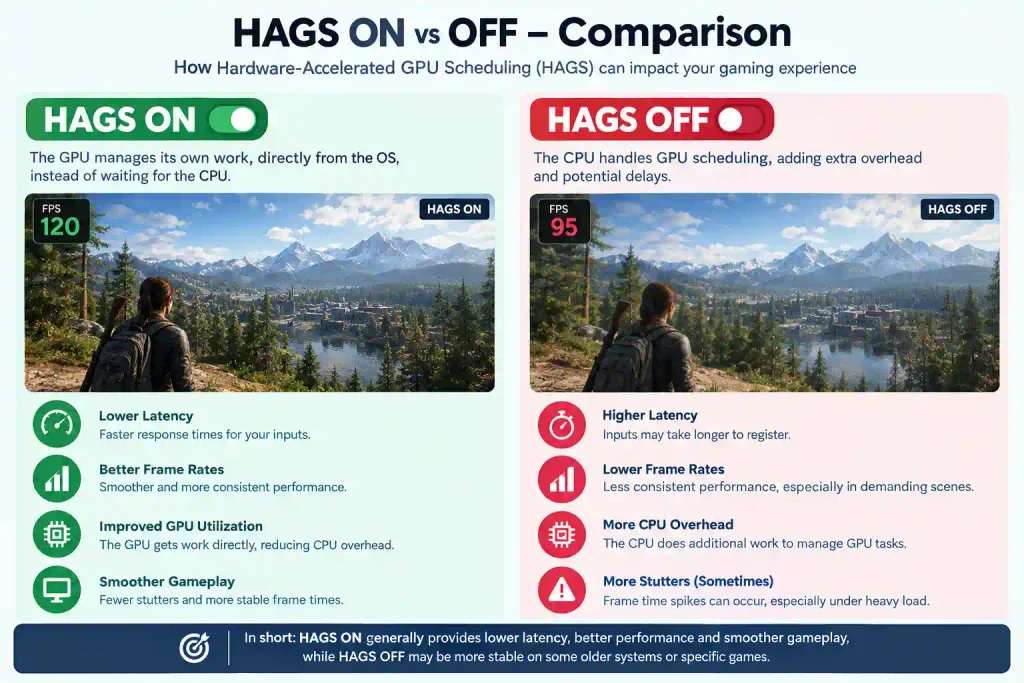
Hardware Accelerated GPU Scheduling ON vs OFF: Comparison Table
| Factor | HAGS ON | HAGS OFF |
|---|---|---|
| CPU scheduling load | Reduced, GPU handles more | Higher, CPU handles more |
| Average FPS | Usually the same or +1-2% | Baseline |
| 1% low FPS / frame pacing | Sometimes smoother | Baseline |
| DLSS Frame Generation | Available (RTX 40/50) | Not available |
| VRAM usage | Can be slightly higher | Baseline |
| Older CPU/driver stability | May stutter in some cases | Often more predictable |
| Capture and remote tools | Possible conflicts | Fewer reports |
| Creative apps (export/render) | May be slightly slower | Baseline or faster |
| Best for | Modern RTX/RX GPUs, frame generation users | Low-VRAM GPUs, stutter or capture issues |
Quick Decision Guide
| Situation | Recommendation |
|---|---|
| RTX 40/50 series and want DLSS Frame Generation | Keep ON |
| Modern GPU, latest drivers, CPU-limited games | Try ON |
| 8 GB VRAM or less | Test carefully |
| Stutters, crashes, or capture problems | Turn OFF |
| Old drivers or old Windows build | Update first, then test |
<a id=”testing”></a>
How to Test Hardware Accelerated GPU Scheduling on Your Own PC
Because results depend on your CPU, GPU, drivers, and games, test it yourself:
- Note your current HAGS setting.
- Pick two or three games you play often.
- Run the same benchmark or scene with HAGS OFF and record average FPS and 1% lows (CapFrameX or MSI Afterburner work well).
- Change only HAGS, restart, and repeat the same test.
- Compare frame-time graphs, not just average FPS, and keep the setting that feels better.
How to Enable or Disable Hardware Accelerated GPU Scheduling in Windows 11
- Open Settings.
- Go to System > Display > Graphics.
- Click Default graphics settings.
- Toggle Hardware-accelerated GPU scheduling ON or OFF.
- Restart your PC.
The exact wording and location can vary slightly between Windows builds. On some Windows 11 systems it may already be ON, so check before changing it.
How to Enable HAGS in Windows 10
Go to Settings > System > Display > Graphics settings, turn on the same toggle, and restart. You need version 2004 or newer.
Registry Method
The setting is stored at HKEY_LOCAL_MACHINE\SYSTEM\CurrentControlSet\Control\GraphicsDrivers as the HwSchMode value (2 = ON, 1 = OFF). Back up your registry first and restart after changing it.
Why Is the HAGS Option Missing or Greyed Out?
- Outdated GPU driver. Download the latest driver from NVIDIA, AMD, or Intel directly, not only through Windows Update.
- Unsupported GPU. Older cards do not support the feature.
- Old Windows build. You need Windows 10 2004 or newer.
- Virtual machine or basic display adapter. These usually do not expose the option.
- Message says “not supported by your hardware.” This often points to a driver or OS problem rather than the card itself, even on RTX 40 series cards.
Should Creators Use Hardware Accelerated GPU Scheduling?
If you edit video or render 3D scenes, do a timed export test with HAGS ON and OFF using the same project. Many creators see no difference, but some workloads run slightly slower with it enabled. If you also game with frame generation, you can keep it ON and accept the small trade-off, or switch depending on the task.
The Future: Windows 11 24H2 and GPU Fences
Windows keeps building on this idea. Windows 11 24H2 introduced native GPU fences with WDDM 3.2, sometimes described as GPU hardware scheduling stage 2. They let the GPU handle synchronization between engines without extra CPU round trips. HAGS is now less a speculative 2020 toggle and more part of a longer platform shift, but enabling it does not guarantee every related capability is available on your machine.
What independent tests found: Tom’s Hardware measured an average change of between 0.03% slower and 0.06% faster across its tests, and Gamers Nexus found no significant change in FPS, 1% lows or frame times. Microsoft says users should not notice a significant difference. Sources: Tom’s Hardware; Gamers Nexus; Microsoft DirectX Developer Blog; Nixxes Support – DLSS Frame Generation requirements.
Frequently Asked Questions About Hardware Accelerated GPU Scheduling
What is Hardware Accelerated GPU Scheduling?
It is a Windows feature that lets the GPU handle more of its own scheduling instead of the CPU doing it all.
Does Hardware Accelerated GPU Scheduling improve gaming performance?
Sometimes slightly. It mainly improves efficiency and frame pacing, and average FPS gains are usually small.
Is HAGS required for DLSS Frame Generation?
Yes. NVIDIA DLSS Frame Generation needs HAGS enabled in Windows on supported RTX 40 and 50 series GPUs.
Does HAGS increase VRAM usage?
It can, which matters mostly on GPUs with 8 GB of VRAM or less.
Is HAGS safe to enable? Can it damage hardware?
It is safe. It is a software scheduling feature and cannot damage hardware. You can switch it off anytime.
Does HAGS help with CPU bottlenecks?
It can reduce CPU overhead, but it does not fix a real bottleneck. Use a bottleneck calculator to check your pairing.
Why does HAGS cause stutters for some people?
Driver bugs, low VRAM, older CPUs, or software conflicts can cause it. Update drivers or turn HAGS off.
Why is the HAGS option missing on my PC?
Your GPU, driver, or Windows version may not support it. Update Windows and install the latest driver from the manufacturer.
Conclusion
Hardware Accelerated GPU Scheduling is an efficiency feature, not a guaranteed FPS booster. It can lower CPU load and smooth frame pacing, and it is essential if you want DLSS Frame Generation on an RTX 40 or 50 series card. On low-VRAM or older systems, or with certain capture tools, it can cause problems.
The best approach is simple: update your drivers, test HAGS ON and OFF with your favorite games, and keep the setting that works best. Before buying new parts, run a CPU GPU bottleneck check to see what is really limiting your performance.