What Are 1% Low FPS? 1% and 0.1% Lows Explained (2026)
1% low FPS is the frame rate of the slowest 1% of frames in your game. It shows how bad the dips and stutters are, which average FPS hides. If your 1% lows are close to your average FPS, the game feels smooth. If they are far below it, you feel stutter even when the average looks high.
This guide explains what 1% and 0.1% lows mean, how they are calculated, what a good number is, and how to fix low 1% lows. To check whether your CPU and graphics card are balanced, try our free bottleneck calculator.
Last updated: November 2026
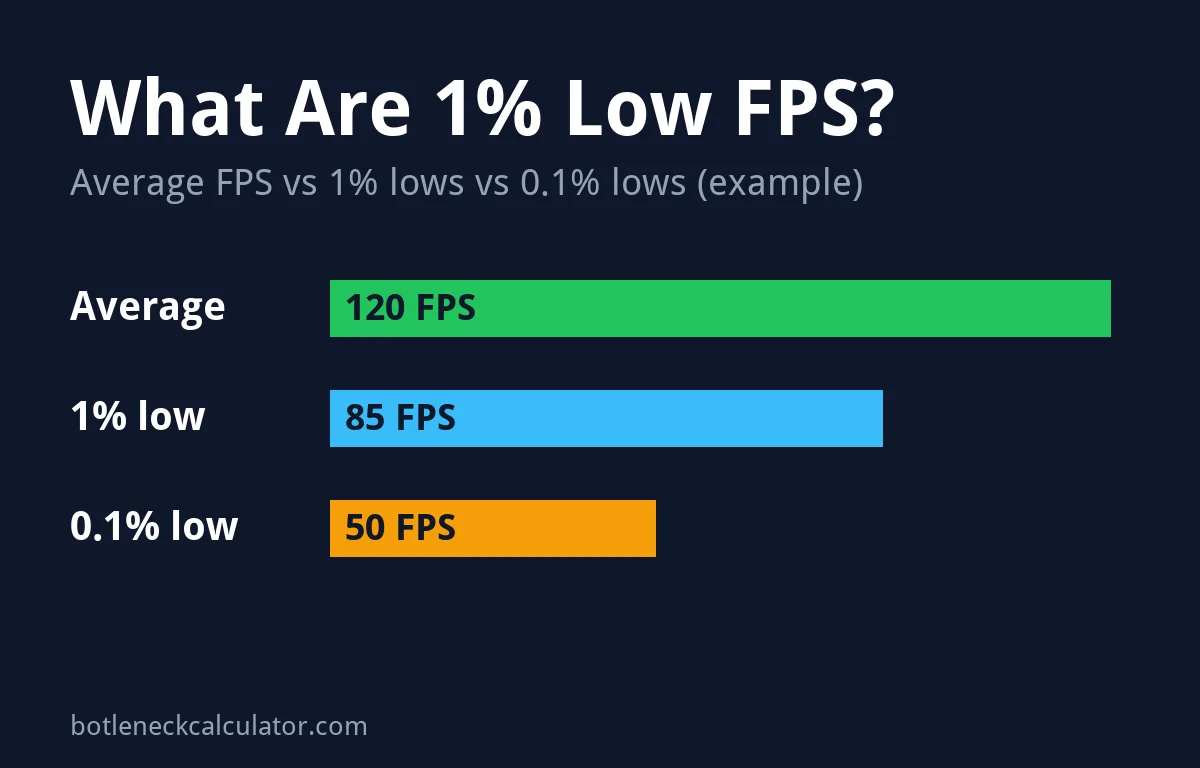
Table of ContentsShow or hide all 9 sectionsShowHide
1% lows: key facts
- What it is: the FPS of your slowest 1% of frames.
- Why it matters: it shows stutter and dips that average FPS hides.
- Good result: 1% lows close to your average FPS.
- 0.1% lows: the slowest 0.1% of frames. They catch rare, big hitches.
- Common causes of bad lows: CPU limits, shader compilation, too little RAM or VRAM, and RAM running below its rated speed.
What are 1% lows in gaming?
Your game shows many frames every second, and each one takes a slightly different time to draw. Average FPS mixes them all into one number. The 1% low looks only at the worst part: if you record 1,000 frames, it is based on the slowest 10.
How-To Geek gives a simple example: a game that averages 60 FPS but keeps dropping to 20 FPS at key moments. The average looks fine, but the drops make it stutter. The 1% low is the number that shows those drops.
Average FPS vs 1% lows vs 0.1% lows
| Metric | What it measures | What it tells you |
|---|---|---|
| Average FPS | All frames together | How fast the game runs overall |
| 1% low | The slowest 1% of frames | How bad the normal dips are |
| 0.1% low | The slowest 0.1% of frames | Rare, big hitches and freezes |
| Minimum FPS | The single slowest moment (in some tools) | One worst spike, often random |
How are 1% lows calculated?
Tools record the time each frame takes, called frame time, and convert it to FPS with FPS = 1000 ÷ frame time in milliseconds. The CapFrameX team explains that tools then use one of three methods:
- Percentile (P1): sort all frames from slowest to fastest and take the value at the 1% mark.
- 1% low average: average the slowest 1% of frames. This includes every bad spike, so it is always lower than the percentile.
- Time-based 1% low: count the slowest frames until they add up to 1% of the total play time. A long freeze counts more than a short blip.
Because tools use different methods, do not compare 1% lows from two different tools. Use the same tool and the same game scene when you test a change.
What is a good 1% low?
There is no official number. What matters is the gap between your average FPS and your 1% lows: the closer they are, the smoother the game. ASUS ROG gives an example: a game around 80 to 100 FPS that dips into the 60s is not too bad, but dips into the 40s show strong hitching.
Our advice: try to keep your 1% lows at or above your monitor’s refresh rate target, or at least above 60 FPS for most games. Read is 60 FPS good for gaming for more on targets.
Why are my 1% lows so low?
- CPU bottleneck. Busy scenes with many players, NPCs or physics overload the processor. See our CPU bottleneck guide.
- Shader compilation. Some games build shaders while you play, which causes short hitches, often only the first time.
- Not enough VRAM. When graphics memory is full, data comes from slower memory. See how much VRAM you need.
- Not enough RAM. With too little system memory, Windows swaps to the drive. See how much RAM you need.
- RAM below its rated speed. Without XMP or EXPO turned on, a fast kit can run at slower default speeds.
- Overheating. A CPU or GPU near its maximum temperature slows itself down.
- The game itself. Some stutter comes from the game or its DRM and only the developer can fix it.
How to check your 1% lows
- Install a monitoring tool such as MSI Afterburner with RivaTuner, CapFrameX, NVIDIA FrameView or ASUS GPU Tweak III.
- Turn on the average FPS, 1% low and 0.1% low readouts.
- Start logging, play the same part of the game for one to two minutes, then stop logging.
- Compare the 1% low with the average. Repeat after each change you make, in the same scene.
Our guide on how to monitor PC performance while gaming shows how to set up the overlay.
How to improve 1% lows
- Turn on XMP or EXPO in the BIOS so your RAM runs at its rated speed.
- Update your BIOS and graphics driver.
- Lower CPU-heavy settings such as NPC count, draw distance and physics if your CPU is the limit.
- Lower texture quality or resolution if your VRAM is full.
- Cap your frame rate slightly below your average FPS. A steady lower number often feels smoother than a high but jumpy one.
- Check temperatures and make sure your fans and cooler work. See normal CPU temperatures.
- Close background apps such as browsers and launchers.
- Upgrade the limiting part if nothing else helps. Check your pair first in our bottleneck calculator.
Still stuttering on a fast PC? Read why a high-end PC can still stutter.
Sources: CapFrameX – Explanation of different performance metrics; ASUS ROG – What are 1% lows?; How-To Geek – Why 1% lows matter.
Frequently asked questions
Are 1% lows more important than average FPS?
For how smooth a game feels, often yes. Average FPS shows speed, but 1% lows show the dips you actually notice. Look at both together.
Is 1% low the same as minimum FPS?
Not exactly. Minimum FPS is often the single worst moment, which can be a random spike. The 1% low uses the slowest 1% of frames, so it is more reliable.
Why are my 0.1% lows so much lower than my 1% lows?
The 0.1% low looks at very few frames, so one big hitch, such as a shader load, pulls it down a lot. Short tests make it even less reliable, so record a longer run.
Does more RAM improve 1% lows?
Yes, if you did not have enough before. Going from 8 GB to 16 GB, or using two sticks in dual channel with XMP or EXPO on, often gives better 1% lows. Extra RAM beyond what games use does not help.
Will a CPU upgrade improve my 1% lows?
If your CPU is the bottleneck, usually yes. Busy scenes depend heavily on the processor, so a faster CPU raises the slowest frames most.
What is a good 1% low for a 144Hz monitor?
As a rule of thumb, aim for 1% lows near 100 FPS or higher so the game stays smooth. If they fall much lower, capping FPS or lowering CPU-heavy settings can help.